Blog

Why Your Home Router Needs More Attention Than You Think  

Your home router is like the front door to your digital life, yet most people set it up once and never think about it again. Just like you wouldn’t leave your front door unlocked or use the same key your house came with, your router deserves regular attention to keep your family’s devices and information safe. 

What Exactly Does Your Router Do?

Think of your router as a traffic controller for your home’s internet. Every device in your house—phones, tablets, computers, smart TVs, even your doorbell camera—connects through your router to reach the internet. It decides what information comes in and what goes out, making it one of the most important pieces of technology in your home. 

Common Router Problems You Might Not Know About

1. Still Using the Default Password 

When you first got your router, it came with a username and password printed on a sticker. Many people never change these, which is like having a house key that thousands of other homes share. Hackers have lists of these default passwords and can easily try them to get into your network. 

2. Outdated Software (Firmware) 

Just like your phone needs updates, your router needs them too. These updates fix security problems and improve performance. If you’ve never updated your router, it might have security holes that hackers can exploit. 

3. Weak Wi-Fi Passwords 

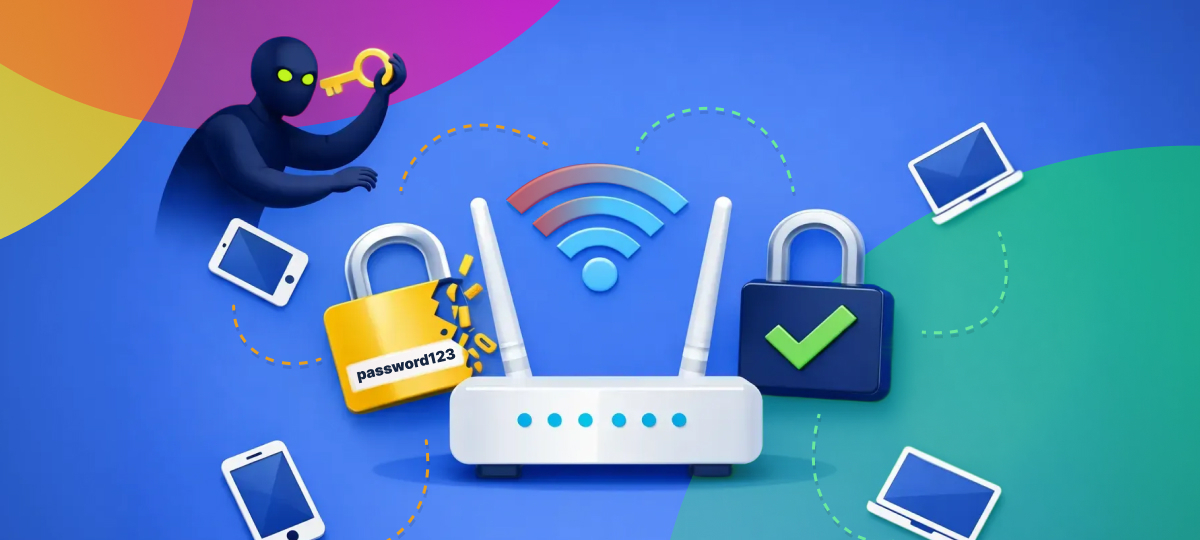
Passwords like “password123” or “12345678” might be easy to remember, but they’re also easy to guess. A weak Wi-Fi password means neighbors or strangers nearby could use your internet without permission—slowing down your connection and potentially seeing what you’re doing online. 

4. Guest Network Not Set Up 

When friends visit and ask for your Wi-Fi password, you probably give them access to your main network. This means their devices can potentially see and connect to your personal devices, like your printer or shared folders. 

Easy Steps to Make Your Router More Secure

1. Change Your Router’s Admin Password 

This is different from your Wi-Fi password. It’s what you use to log into your router’s settings page. Change it from the default to something unique and write it down in a safe place. 

2. Create a Strong Wi-Fi Password 

Use a mix of letters, numbers, and symbols. Make it at least 12 characters long. A good trick is to use a memorable phrase like “MyDog@teMyH0mework2024!” instead of a random string you’ll forget. 

3. Update Your Router Regularly 

Log into your router’s settings (usually by typing 192.168.1.1 or 192.168.0.1 into your web browser) and look for a “firmware update” option. Some newer routers can update automatically—turn this feature on if available. 

4. Set Up a Guest Network 

Most modern routers let you create a separate Wi-Fi network for visitors. This keeps guests on the internet without giving them access to your personal devices. It’s usually just a checkbox in your router settings. 

5. Turn Off Remote Management 

Unless you specifically need to access your router from outside your home, turn off remote management. This feature can be a doorway for hackers if not properly secured. 

How to Tell If Something’s Wrong 

Watch for these warning signs: 

  • Your internet is suddenly much slower than usual 
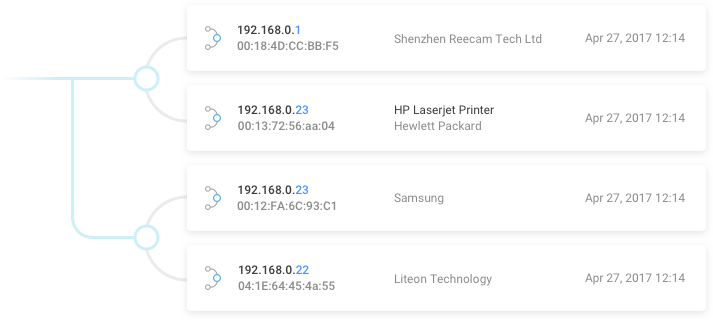
  • Devices you don’t recognize appear in your router’s connected devices list 
  • Your router’s lights are behaving strangely 
  • You can’t log in with your usual password 
  • Friends or family report strange activity on their devices when connected to your Wi-Fi 

Using Tools to Monitor Your Network 

GlassWire can help you see exactly what’s happening on your network in simple, visual terms. It shows you which devices are connected and which programs are using your internet, making it easy to spot anything unusual without needing technical knowledge. 

Creating a Router Maintenance Routine 

Make router security part of your regular home maintenance, just like changing air filters or checking smoke detectors: 

  • Monthly: Check which devices are connected to your network 
  • Every 3 months: Check for and install router updates 
  • Every 6 months: Change your Wi-Fi password 
  • Yearly: Review your router’s security settings and consider upgrading if your router is more than 5 years old 

When to Consider a New Router 

Technology improves quickly. If your router is more than five years old, it might not have the latest security features. Newer routers offer: 

  • Automatic security updates 
  • Better protection against modern threats 
  • Stronger encryption 
  • Easier setup and management through smartphone apps 
  • Better performance for all your devices 

Conclusion 

Your router is the gateway to your digital life, protecting everything from your banking information to your family photos. Taking a few simple steps to secure it properly gives you peace of mind and keeps your household safe online. The good news is that most of these protections take just minutes to set up but provide lasting security for years to come. 

Don’t wait for a problem to happen. Take 30 minutes this week to check your router settings and make these simple improvements. Your future self will thank you for taking this important step toward better home security. 
Blog

How to Spot Malicious Apps

A malicious app is created specifically with the intention to cause harm.

They’re usually designed to appear as innocent apps, or even clones of official apps, to steal sensitive information.

For example, a malicious developer could design a storage cleaner app to steal files and data from the users that install it on their devices. Or, clone a familiar banking app to take your account details.

What Makes an App Malicious?

There are plenty of applications that exist that could be vulnerable to hacking but overall have no sinister intentions.

For example, any app that collects location data could be intercepted by a hacker looking to steal that information. These appear as riskier apps but aren’t developed to cause deliberate harm.

Malicious apps, on the other hand, exist primarily to either steal information from the user who installs it or to manipulate the device it’s installed on.

Malicious Behavior to Look Out For

Developers have smart ways to make malicious apps appear genuine, so it’s vital you understand how to spot a malicious app before downloading it to your device.

Avoid third-party APK files

The Apple and Google official app stores protect you and your data from harm by verifying that the apps they offer are safe. Third-party sites offering APK files to download do not offer protection and pose a significant security threat.

Apple verifies all apps in the store. On Android, look for the ‘Verified by Play Protect’ message when installing an app.

App Store Reviews and Strange App Descriptions

A legit app has lots of genuine reviews and ratings left by users. They also have descriptive information about how the app works.

If you come across an app that has almost no reviews, or the reviews appear to be copied and pasted, this could be a warning sign.

Similarly, if there’s no app description or the information is vague with lots of grammatical errors, chances are the app could be malicious.

Check for higher-than-usual data usage

Malicious apps often use your data to perform sketchy tasks in the background without your knowledge.

Check your monthly data usage in your settings, or install a dedicated data monitor like GlassWire.

If something doesn’t seem right, and the problematic app appears to be using far more data than it should be, uninstall it immediately.

Common Mobile Vulnerabilities

Mobile devices can be susceptible to malicious apps or other kinds of security threats because they have certain vulnerabilities that hackers exploit.

Data Leaks

When you install an app, how often do you check what permissions you’re allowing?

Apps often collect sensitive data and we don’t read the fine print to see what this is. You could potentially be handing over a lot of your personal information without realizing it.

Open Wifi

Open wifi spots—ones you can connect to without a password—can be convenient in a pinch.

However, they pose a massive risk.

When your device is connected, hackers can easily intercept the data you’re sending and receiving and even access your device.

Old or Out-of-Date Device

Did you know that mobile devices only receive software and security updates for a certain number of years?

After that, the device becomes a huge target for hackers.

As newer models come out, developers stop providing support for the older devices. This leaves big gaps in security which can be exploited.

Poor Password Protection

Kaspersky Labs found that over half of consumers don’t password-protect their mobile devices. Are you one of them?

Leaving your mobile device easy to access poses a threat to your personal data if the phone is lost or stolen.

Avoiding Malicious Apps with a Personal Firewall

Choosing a personal firewall proactively protects your devices in several ways.

A quality personal firewall can:

  • Monitor network traffic for threats by inspecting packets of data received
  • Defend against viruses by identifying thousands of new types every week
  • Prevent hackers from accessing your data through anti-fraud and anti-phishing methods
  • Adds a layer of privacy to your data by encrypting files, protecting location info, and preventing unwanted microphone access

In Summary

Malicious apps are out to steal your data.

Protect your devices with firewalls, data monitors, and strong passwords. Avoid open wifi networks and third-party app websites.

Take care in only installing trusted apps from official app stores and if something feels off about an app you’ve installed, like higher data usage or strange permissions, uninstall the app immediately to keep yourself safe from attack.

Blog

Does your hotel room or Airbnb have a hidden spy camera?

Ever use an Airbnb?  According to the Airbnb website in some situations it may be OK if there is a camera inside your room monitoring you in real-time.  The owner of the Airbnb only has to acknowledge the camera exists.  Creepy isn’t it?

Unfortunately, many guests don’t know about this rule and don’t read their Airbnb listing carefully.  Imagine being in a rush and quickly having to find a hotel room for a vacation or event.  It’s easy to miss a small notice that says “camera in room” in a long Airbnb descriptive listing.

And what about hosts who have decided this disclosure rule doesn’t apply to them?  They may be thinking that if they just hide their camera they can have the best of both worlds.  Why not have full surveillance of their Airbnb and no disclosure on their listing?  They wouldn’t want to damage their income, would they? 

It wouldn’t be the first time a host broke the Airbnb rules.  And it wouldn’t be the first time a hotel illegally spied on their guests.

So how can you protect yourself from spying cameras in your hotel or Airbnb? 

First fire up GlassWire for Windows and join your Airbnb or Hotel WiFi network if you feel it’s safe to do so.  Now click the “Things” tab.  What all is listed there?  See anything from “Nest” or “Ring” or any unusual hardware types or names?  You may just have a camera pointed at you.

The GlassWire “Things” (Internet of Things) feature can usually detect hidden cameras on your WiFi network.

Take a walk around the inside of the room.  See any unusual items sitting out or strange things sticking out of vents?  One way to get an idea about how hidden cameras look is to do an Amazon.com search for “hidden camera”.  You’ll find clocks, pens, fake USB stands, power bricks, and all kinds of things with cameras in them. 

If you’re seeing a device on GlassWire’s “Things” but you can’t find a camera inside the room then maybe take a walk around outside.  Perhaps it’s an outdoor camera you don’t have to worry as much about.

Another way to find a camera is to detect it through your mobile phone camera lens.  Turn off the lights in your room.  Now use the front “selfie” camera on your phone and point it around the room looking for a purple or white glow. 

If you’re unsure if your front phone camera detects infrared light or not you can point a TV remote control at it while in the dark.  Please note that AppleTV remotes use Bluetooth to connect and are not infrared.  You’ll need to check with an old style TV remote.

There are also hardware devices for sale that will send out a flashing light which can help you catch difficult to see camera lenses.  I have tried some of those devices and they seem neat but if you’re staying in a small space you can almost always spot hidden cameras without having to purchase a dedicated hardware device.  Just take your time, then use your camera and GlassWire.  With a little time and effort you can usually be sure you aren’t being monitored by a hidden camera.

Blog

GlassWire 2.1.137 is here with dark themes and detailed host info!


GlassWire fans have been requesting a dark theme for awhile, and our dark theme for GlassWire is finally here!  Upgrade now to try this major new update.

Also, have you ever seen unusual activity from a host (IP) but you were unable to determine if it’s safe or not?  We’ve now added a cool new feature to help with this situation.  Mouse over the host you’re concerned about and a circle icon with three dots will appear.  Click that icon and choose “search online” and we show detailed information about the host including VirusTotal results and much more!

Upgrade now to try our GlassWire 2.1 update FREE.

Get GlassWire 2.1.137 Now!