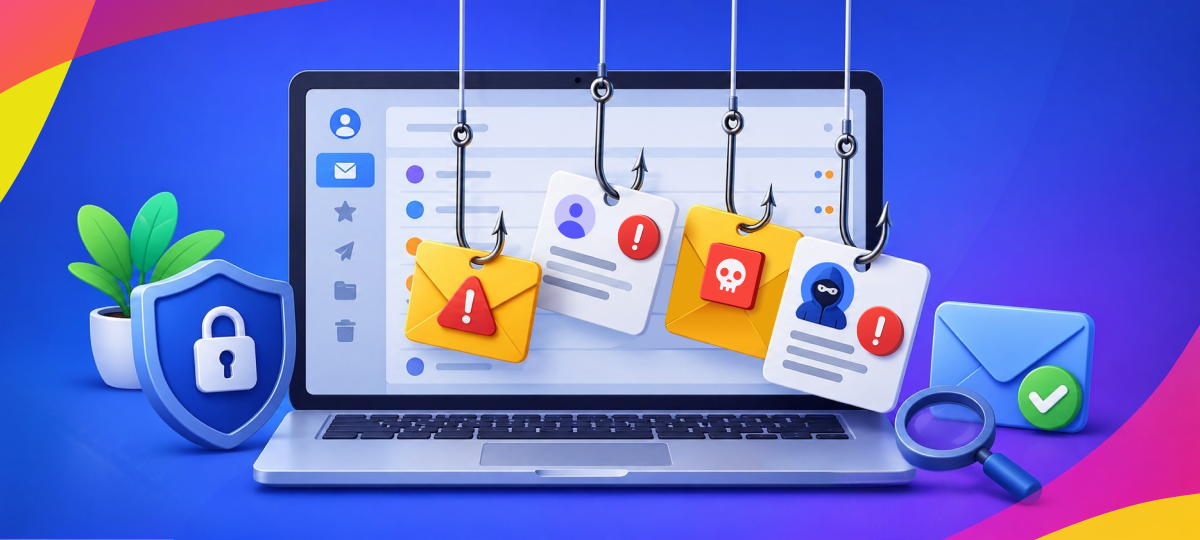
Your email inbox is probably the most important digital tool you use. It’s connected to your banking, shopping accounts, social media, and work. That makes it a prime target for scammers and hackers. But protecting your email doesn’t require technical expertise—just awareness and some simple habits that become second nature over time.
Why Email Security Matters So Much
Think about everything connected to your email:
- Online banking and financial accounts
- Shopping sites with saved credit cards
- Work documents and communications
- Social media profiles
- Medical portals
- Subscriptions and services
If someone gets into your email, they can potentially reset passwords and take over all these accounts. Your email is like a master key—protecting it protects everything else.
The Most Common Email Threats
1. Phishing Emails
These are fake emails designed to trick you into giving away personal information or clicking dangerous links. They often pretend to be from:
- Your bank asking you to “verify” your account
- A shipping company saying you have a package
- A tech company claiming there’s a problem with your account
- The IRS or other government agencies
- Your boss asking for urgent help
2. Malware Attachments
Some emails include attachments that install harmful software when opened. These might look like:
- PDF files labeled “Invoice” or “Receipt”
- Word documents with “Important” in the name
- Zip files that claim to contain photos or documents
3. Account Takeover
Hackers try to guess or steal your email password to access your account. They then use your account to:
- Send spam to your contacts
- Access other accounts by resetting passwords
- Steal personal information
- Impersonate you to scam your friends and family
How to Recognize Suspicious Emails
Train yourself to spot the warning signs:
Check the Sender Carefully
- Does the email address match the company it claims to be from?
- Look for misspellings: “paypa1.com” instead of “paypal.com”
- Be suspicious of emails from free services (Gmail, Yahoo) claiming to be from major companies
Look for Urgent or Threatening Language
Scammers create panic to make you act without thinking:
- “Your account will be closed in 24 hours!”
- “Unusual activity detected – click here immediately!”
- “You’ve won a prize – claim it now!”
- “Payment failed – update your information today!”
Real companies rarely use this kind of pressure tactic.
Watch for Generic Greetings
Legitimate companies usually use your name. Be suspicious of:
- “Dear Customer”
- “Dear User”
- “Dear Account Holder”
- No greeting at all
Notice Poor Grammar and Spelling
Professional companies proofread their emails. Multiple spelling errors, odd grammar, or awkward phrasing suggest a scam.
Suspicious Links
Before clicking any link:
- Hover your mouse over it to see where it really goes
- On phones, long-press the link to preview the URL
- Look for misspelled domain names
- Be wary of shortened links (bit.ly, tinyurl) from unknown senders
Unexpected Attachments
Never open attachments from people you don’t know. Even if you know the sender, be cautious about:
- File types you weren’t expecting
- Unusual file names
- Attachments when there’s little or no message
Essential Email Security Practices
1. Use a Strong, Unique Password
Your email password should be:
- At least 12 characters long
- A mix of letters, numbers, and symbols
- Not used for any other account
- Changed if you suspect any breach
Consider using a passphrase—a sentence that’s easy for you to remember but hard for others to guess: “MyDog@te3PizzaSlices!Tonight”
2. Turn On Two-Factor Authentication (2FA)
This adds an extra security step when logging in. Even if someone steals your password, they can’t access your account without the second factor—usually a code sent to your phone.
How to enable:
- Gmail: Settings > Security > 2-Step Verification
- Outlook: Security settings > Two-step verification
- Yahoo: Account security > Two-step verification
3. Never Click Links in Suspicious Emails
If an email says there’s a problem with your account:
- Don’t click the link in the email
- Open your browser and type the website address yourself
- Log in normally and check for any actual alerts
4. Verify Before You Trust
If you receive an unexpected email from someone you know:
- Call or text them to confirm they sent it
- Check if their account might have been hacked
- Look for signs the email doesn’t sound like them
5. Keep Your Email Software Updated
Email apps and programs get security updates regularly:
- Enable automatic updates on your phone and computer
- Don’t ignore update notifications
- Consider using email apps from trusted companies
Safe Email Habits for Daily Life
Be Careful What You Share
Avoid sending sensitive information by email:
- Credit card numbers
- Social Security numbers
- Passwords
- Copies of important documents
If you must share sensitive information, use secure file-sharing services or encrypted email.
Clean Up Regularly
- Delete old emails you don’t need (especially ones with personal information)
- Unsubscribe from emails you no longer read
- Review and remove old email forwarding rules
- Check for apps with access to your email and remove ones you don’t use
Use Separate Email Addresses
Consider having different emails for different purposes:
- One for banking and important accounts
- One for shopping and newsletters
- One for signing up for websites you’re not sure about
This limits damage if one gets compromised.
Be Wary of Public Wi-Fi
When checking email on public Wi-Fi:
- Avoid accessing sensitive accounts
- Use a VPN if possible
- Don’t stay logged in longer than necessary
- Log out completely when finished
What to Do If Something Goes Wrong
If You Clicked a Suspicious Link
- Don’t panic
- Change your password immediately
- Run antivirus software on your device
- Check for any unauthorized account activity
- Enable 2FA if you haven’t already
If Your Email Gets Hacked
- Try to regain access by resetting your password
- Alert your contacts that your account was compromised
- Check all linked accounts and change their passwords
- Review your email forwarding and filter settings
- Contact your email provider’s support team
If You Think You’ve Been Scammed
- Contact your bank or credit card company immediately
- File a report with the FTC at ftc.gov/complaint
- Document everything (save emails, take screenshots)
- Monitor your accounts and credit report
- Consider placing a fraud alert on your credit
Teaching Others
Help family members, especially older relatives, stay safe:
- Show them examples of scam emails
- Practice checking sender addresses together
- Set up 2FA on their accounts
- Be their go-to person for “does this look suspicious?”
Never make them feel bad for asking—that’s exactly what scammers count on.
Using Security Tools
GlassWire helps you monitor what’s happening on your network. If malware from an email tries to communicate with suspicious servers, GlassWire can alert you. It provides an extra layer of protection by making unusual network activity visible and understandable.
Your Email Security Checklist
Complete these items this week:
- Enable two-factor authentication
- Create a strong, unique password
- Review security settings
- Delete old, unnecessary emails
- Unsubscribe from unwanted lists
- Check which apps have access to your email
- Update your email app/program
- Show a family member how to spot scams
Conclusion
Email security doesn’t require you to become a cybersecurity expert. It’s about developing awareness and building simple habits. Most scams work because they catch people in moments of distraction or panic. By taking a few seconds to think before clicking, you can avoid the vast majority of email-based threats.
Remember: legitimate companies will never ask for sensitive information via email, and urgent demands for immediate action are almost always scams. When in doubt, verify through another channel. Your inbox is worth protecting—it’s the gateway to your digital life. Start implementing these practices today, and make email safety a natural part of how you communicate online.