Your home router is like the front door to your digital life, yet most people set it up once and never think about it again. Just like you wouldn’t leave your front door unlocked or use the same key your house came with, your router deserves regular attention to keep your family’s devices and information safe.
What Exactly Does Your Router Do?
Think of your router as a traffic controller for your home’s internet. Every device in your house—phones, tablets, computers, smart TVs, even your doorbell camera—connects through your router to reach the internet. It decides what information comes in and what goes out, making it one of the most important pieces of technology in your home.
Common Router Problems You Might Not Know About
1. Still Using the Default Password
When you first got your router, it came with a username and password printed on a sticker. Many people never change these, which is like having a house key that thousands of other homes share. Hackers have lists of these default passwords and can easily try them to get into your network.
2. Outdated Software (Firmware)
Just like your phone needs updates, your router needs them too. These updates fix security problems and improve performance. If you’ve never updated your router, it might have security holes that hackers can exploit.
3. Weak Wi-Fi Passwords
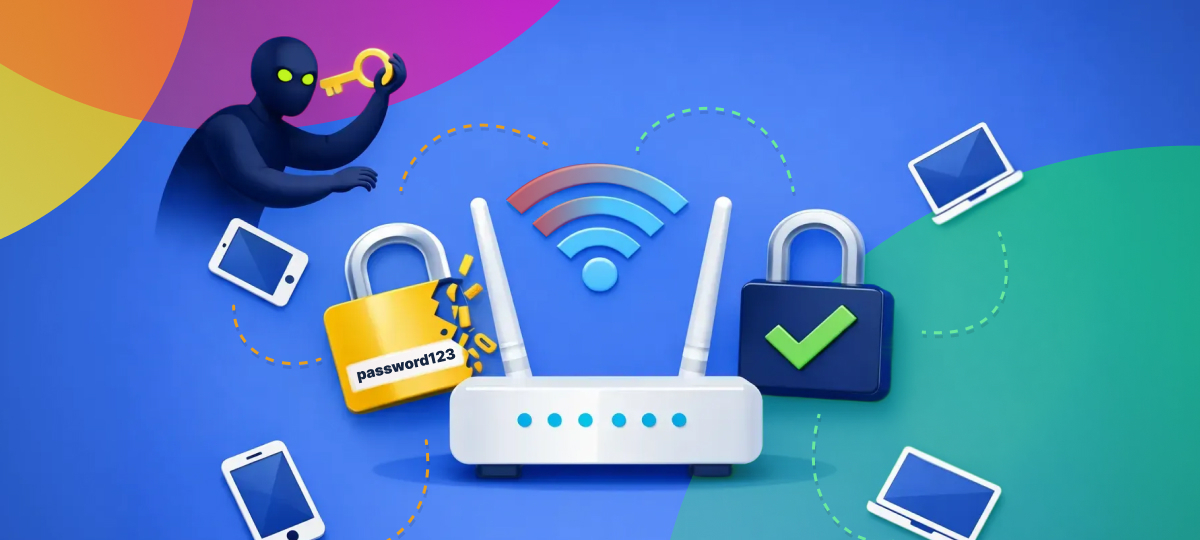
Passwords like “password123” or “12345678” might be easy to remember, but they’re also easy to guess. A weak Wi-Fi password means neighbors or strangers nearby could use your internet without permission—slowing down your connection and potentially seeing what you’re doing online.
4. Guest Network Not Set Up
When friends visit and ask for your Wi-Fi password, you probably give them access to your main network. This means their devices can potentially see and connect to your personal devices, like your printer or shared folders.
Easy Steps to Make Your Router More Secure
1. Change Your Router’s Admin Password
This is different from your Wi-Fi password. It’s what you use to log into your router’s settings page. Change it from the default to something unique and write it down in a safe place.
2. Create a Strong Wi-Fi Password
Use a mix of letters, numbers, and symbols. Make it at least 12 characters long. A good trick is to use a memorable phrase like “MyDog@teMyH0mework2024!” instead of a random string you’ll forget.
3. Update Your Router Regularly
Log into your router’s settings (usually by typing 192.168.1.1 or 192.168.0.1 into your web browser) and look for a “firmware update” option. Some newer routers can update automatically—turn this feature on if available.
4. Set Up a Guest Network
Most modern routers let you create a separate Wi-Fi network for visitors. This keeps guests on the internet without giving them access to your personal devices. It’s usually just a checkbox in your router settings.
5. Turn Off Remote Management
Unless you specifically need to access your router from outside your home, turn off remote management. This feature can be a doorway for hackers if not properly secured.
How to Tell If Something’s Wrong
Watch for these warning signs:
- Your internet is suddenly much slower than usual
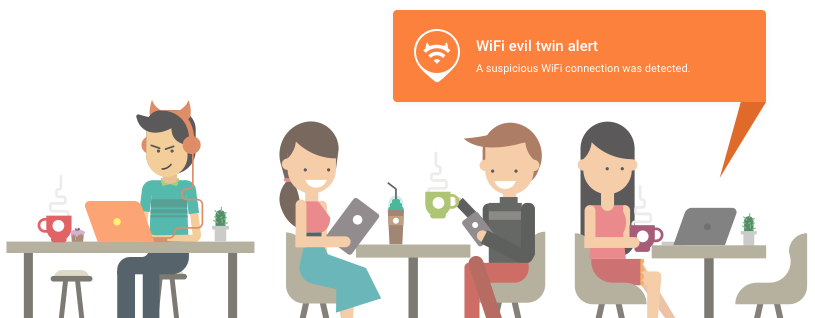
- Devices you don’t recognize appear in your router’s connected devices list
- Your router’s lights are behaving strangely
- You can’t log in with your usual password
- Friends or family report strange activity on their devices when connected to your Wi-Fi
Using Tools to Monitor Your Network
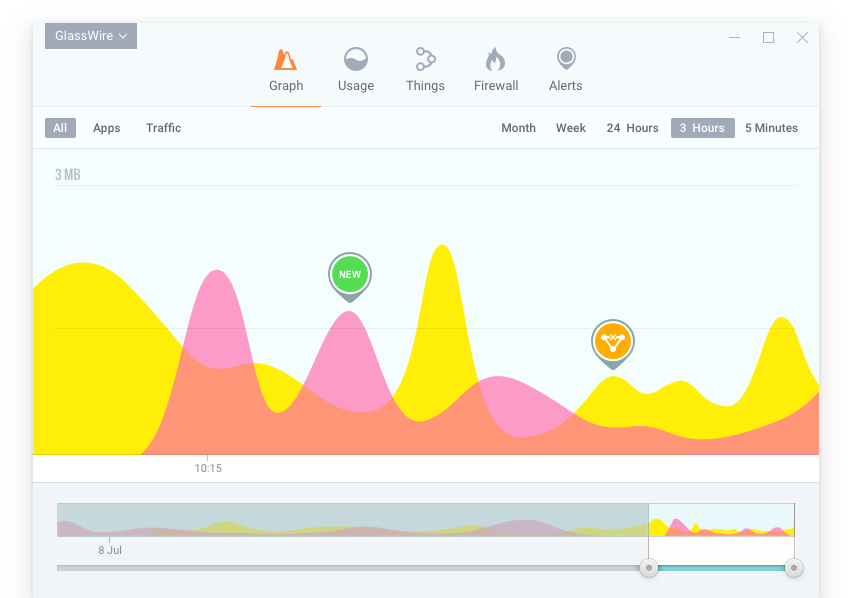
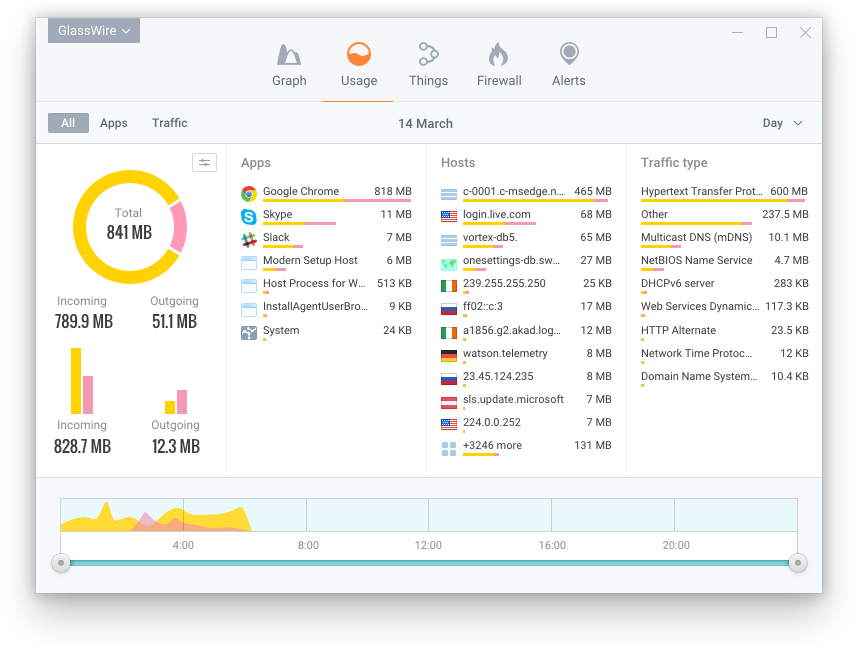
GlassWire can help you see exactly what’s happening on your network in simple, visual terms. It shows you which devices are connected and which programs are using your internet, making it easy to spot anything unusual without needing technical knowledge.
Creating a Router Maintenance Routine
Make router security part of your regular home maintenance, just like changing air filters or checking smoke detectors:
- Monthly: Check which devices are connected to your network
- Every 3 months: Check for and install router updates
- Every 6 months: Change your Wi-Fi password
- Yearly: Review your router’s security settings and consider upgrading if your router is more than 5 years old
When to Consider a New Router
Technology improves quickly. If your router is more than five years old, it might not have the latest security features. Newer routers offer:
- Automatic security updates
- Better protection against modern threats
- Stronger encryption
- Easier setup and management through smartphone apps
- Better performance for all your devices
Conclusion
Your router is the gateway to your digital life, protecting everything from your banking information to your family photos. Taking a few simple steps to secure it properly gives you peace of mind and keeps your household safe online. The good news is that most of these protections take just minutes to set up but provide lasting security for years to come.
Don’t wait for a problem to happen. Take 30 minutes this week to check your router settings and make these simple improvements. Your future self will thank you for taking this important step toward better home security.