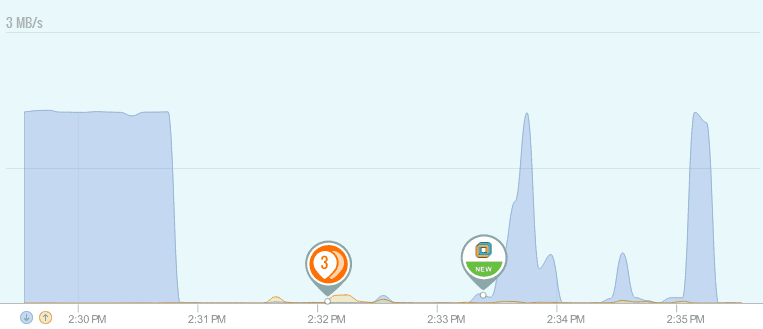
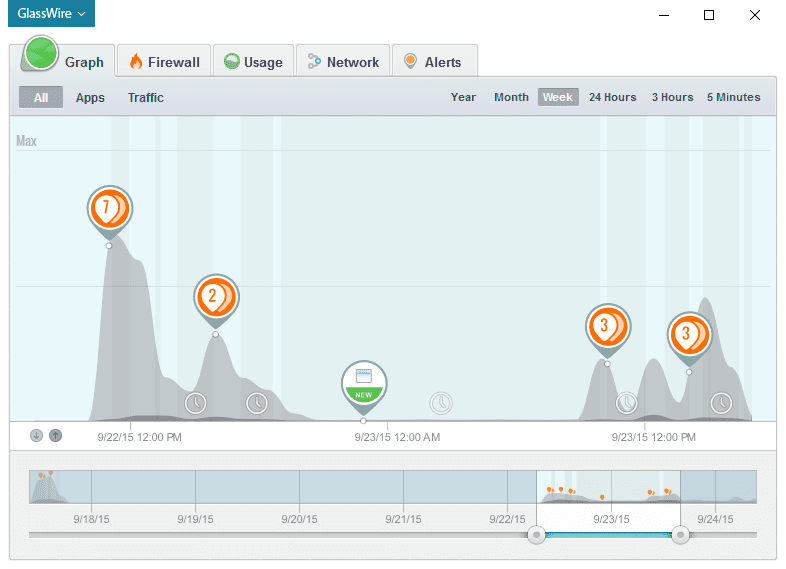
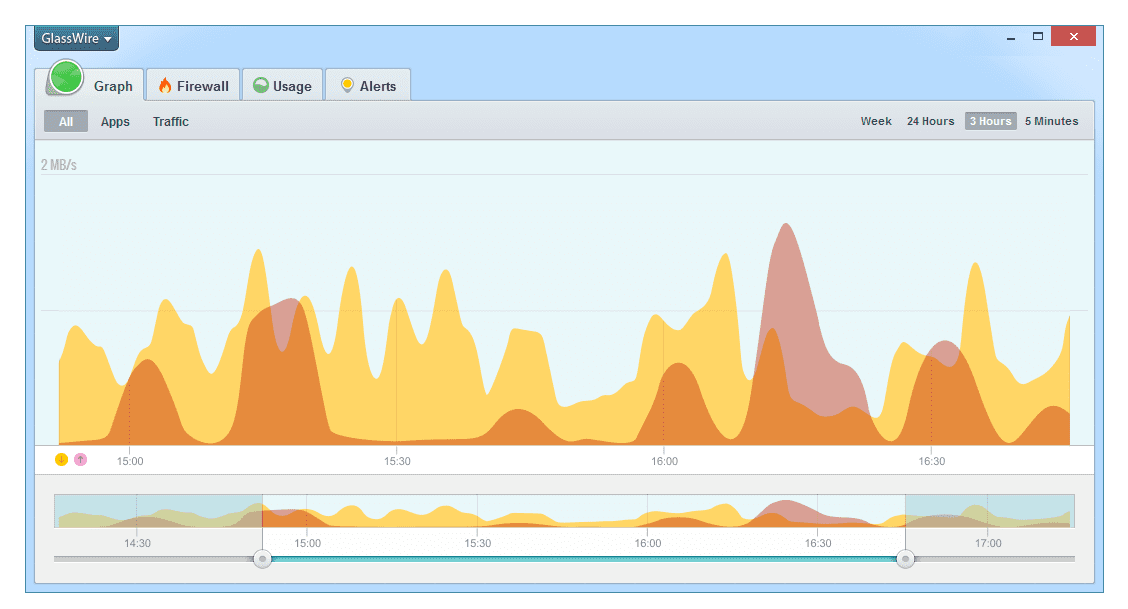
One of the coolest GlassWire features is our network time machine that allows you to go back in time to see your network activity in the past, then drill down into the details to see what apps and hosts your PC was communicating with at that specific point in time. Our network time machine feature is awesome but it also uses a significant amount of memory for some Windows users who have enormous amounts of network connections. For example some heavy BitTorrent users have reported to us that GlassWire uses more memory than they would like.
To combat this problem we had to rewrite some major parts of GlassWire from scratch. This rewrite took many long months of hard work, but now that we have done this hard work GlassWire should use significantly less resources for everyone in the future.
We hope to release this update before the month is out and we’ll announce it when it’s live on the GlassWire Blog, plus we’ll put out a download update through GlassWire itself when it’s ready. Be on the lookout for this major update!
Did you know Microsoft has a free downloadable tool available that can increase the security of Windows significantly? Most people don’t know, but Microsoft’s EMET (Enhanced Mitigation Experience Toolkit) is a freeware security toolkit that’s made to help add an extra layer of safety for system admins. You aren’t an admin? That’s OK, you can still use EMET to help protect your PC from unknown types of viruses and malware and it costs nothing.
Avoiding Malware from Malvertising
You may have heard about malvertising in the news lately and you may be wondering what you can do to protect yourself. Malvertising involves using normal online advertisements on mainstream popular websites to spread malware. This means that you could be visiting a well known website like Forbes, The New York Times, or even using Spotify, and get hit by a malware attack. Believe it or not all three of these major websites/software have accidentally served malware ads at one time or another. What can you do to protect yourself against malvertising that’s being served from popular and trusted websites?
First disable Flash and any plug-ins in your browser you don’t use. If you use the Chrome browser Adobe Flash is already built in, so you don’t need to have Flash installed on your operating system anymore. Even with Flash completely uninstalled while using Firefox you probably won’t notice much of a difference while browsing the web. We wrote a blog post about getting rid of Flash awhile back. Unfortunately Flash, Java, and other plug-ins are often targeted with malware attacks so removing these plug-ins from your PC will make it less likely to be exploited by malware. Also don’t forget to always keep your browser up to date.
A second thing you can do to avoid malware is to use an ad blocker. Two popular ad blockers are Ghostery and Disconnect. These apps block ads completely when you visit websites so you’re a lot less likely to be a malvertising victim. The main problem with blocking ads is that a lot of your favorite websites depend on ads to stay in business. If you do decide to block ads consider white listing websites you want to support so they won’t miss out on income from advertisements, or try to support your favorite websites another way financially.
Many GlassWire fans have asked for the ability to easily remove old or uninstalled apps from the Firewall tab. Instead of allowing users to remove the apps we first added an “Inactive apps” designation in the firewall list where older apps with no recent network connectivity are resorted to the bottom of the list. Today with GlassWire 1.1.36 you can now delete any app from the firewall list whether it’s in the inactive apps list or not.
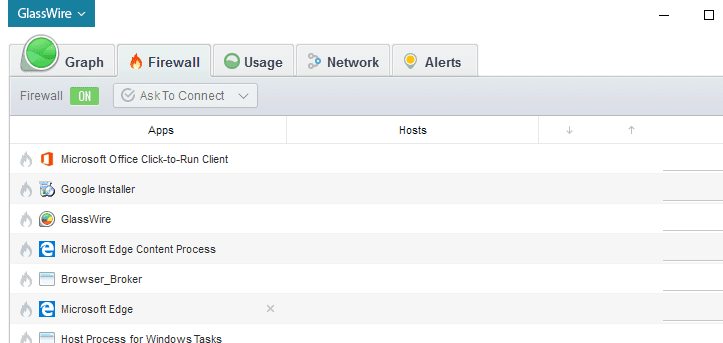
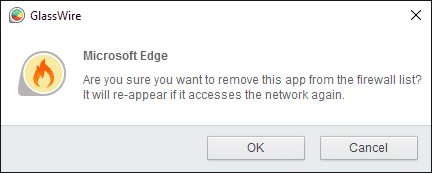
To use this new feature go to the GlassWire “Firewall” tab and then mouse over the app you want to remove. Next click the small “x” that appears next to the app (as shown next to “Microsoft Edge” above in the screenshot, and you will be given a warning to make sure you really want to delete the app. Once the app is deleted it will not reappear in the firewall list unless it accesses the network again.
Don’t confuse removing an app from the firewall list with blocking or unblocking its network access with the firewall. To block an app with the firewall click the fire icon directly to the left of the app icon as usual and the app will be blocked from accessing the network.
What else is new with GlassWire 1.1.36?
Fixed a problem that caused Webcam and Mic usage to not be detected for some Windows 10 users with a specific system update.
Added upload and download bandwidth levels on the mini viewer for paid users.
Fixed a bug that caused settings under the “Usage” tab to not be saved.
GlassWire now restores the install path from the previous installation.
These days not only can software installed on your PC easily access your webcam or mic, but now most browsers can too! Chrome, Firefox, and other modern browsers now have built in access to your webcam and mic with WebRTC.
If you don’t want WebRTC to work in your browsers at all you can turn it off completely but some people need to use their webcam or mic with Firefox for online meetings or other online activities. It’s no fun to completely disable your webcam or mic.
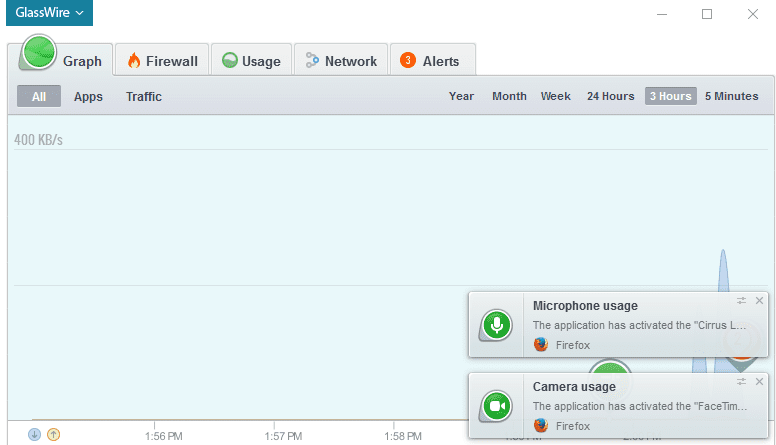
We at GlassWire also felt nervous not knowing when our PCs were using our webcam or microphones, so we built in an extra security feature with GlassWire Basic, Pro, and Elite. After upgrading your version of GlassWire to one of our paid versions go to your settings, then click “security” and turn on the “Camera and mic monitor”. Once the camera and mic monitor is activated you should be alerted when any network-related application accesses your microphone.
If an unknown network-related application is accessing your webcam or mic go to the GlassWire “Alerts” tab and click its icon to learn more about the program and its location on your PC. You can also scan the app by clicking the “virus scan” button. If you’re still not sure about the unknown app try uploading it to VirusTotal.com and see if it shows more information.
Check out the screenshot at the top of this email to see how our webcam and microphone notifications work. After you upgrade to GlassWire’s paid version be sure and go to your settings then click the “security” section to enable this feature.
Update 12/3/2015: We just learned the latest Windows 10 update issued last week disabled this functionality for some users. Be sure and download our latest version of GlassWire if Mic/Webcam detection is not working for you. If the detection still is not working after upgrading to the latest version go to the GlassWire settings and make sure the Mic/Webcam detection is turned on.
Updated: This feature had to be removed due to changes to Windows unfortunately. There is no reliable way to detect Mic/Webcam usage anymore due to changes outside our control.
Did you know GlassWire can monitor remote servers, along with other local PCs in your house all in one place? If you want to see what’s going on with the network activity of your server at work, your game server, or the other PCs in your house it’s easy to find out with GlassWire. Please note remote monitoring is off by default and can only be turned on with your administrator password.
Remoting Out – To remote out and connect to another computer or server go to the “Client” tab in the settings. The settings can be accessed by going to the top left “GlassWire” menu and choosing “Settings”. Next click “Remote Server” then put in the Name (you can name it whatever you want), the computer IP address or host name, and password that you set up with GlassWire. Once you are connected the remote server’s network activity will appear via the GlassWire graph window and you can monitor your server or computer remotely.
Allowing Remote Monitoring – To allow someone to remotely monitor your computer or server you must go to the GlassWire settings then choose the “Server” tab. Next, click the “Remote Access” option and click “Unlock” and type in your operating system password to turn on this feature. You can then choose to allow remote access to the server and put in a password. For extra security we recommend you only allow access from your IP address if it’s a static one that doesn’t change often.
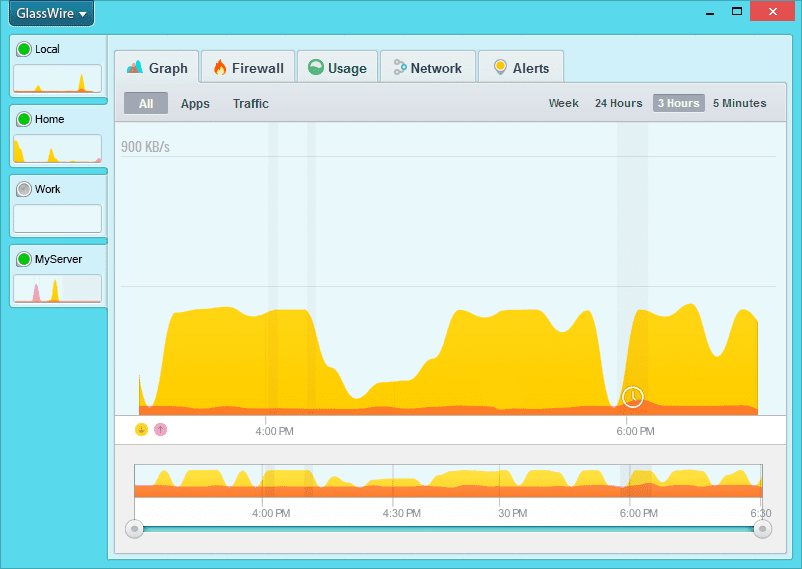
Check the screenshot above of GlassWire in remote monitor mode. In this example GlassWire is monitoring the Local PC its installed on under “Local” then its monitoring three other PCs or servers. GlassWire’s free version can monitor one server but you can upgrade to Basic, Pro, or Elite to monitor more.
We are excited to announce the GlassWire affiliate program is now live and accepting new affiliates. Our new affiliate program accepts affiliates through Commission Junction and Cleverbridge. Commission Junction affiliates can receive up to 50% commissions with tiered sales!
There are some rules, so please read them all carefully before joining. Please note our affiliate program is managed by a third party so we don’t decide who does or doesn’t become an affiliate.
Some users reported a bug where GlassWire would make it difficult for their computer to sleep when not in use. This GlassWire update fixes that sleep problem, along with some other optimizations to help GlassWire run more efficiently.
Thank you for reporting the sleeping bug in our forum, and in our uninstall reports.
We at GlassWire are excited to announce we reached our first million downloads after launching this project one year ago. I remember how scary it was to release something that we had worked so hard on and not knowing if anyone would use it at all. It was a relief when people started using GlassWire and learning all kinds of interesting things about their network activity.
We’d like to thank our users for helping to spread the word about our software, letting us know about bugs, exploring new feature ideas, and participating in our forum. Also thank you to the different writers, websites, fans, partners, and Twitter users that gave us a chance when we were new and wrote about us. Here’s to many million more users for GlassWire in the future!
Basic, Pro, and Elite users can go to the Settings then the Client tab to choose “Keep mini viewer on top” to always keep it on top of your other windows. Thanks for requesting this feature.
We fixed a problem for some users who were running their apps on a shared network.
Added a new flag for geographic locations for IP addresses which are not local and do not resolve.
Fixed a bug where “Ask to connect” and “Block all” modes would not work in a few cases for some users.
Fixed a bug where some devices on the network had strange characters next to their name for some users.
It’s annoying enough when apps phone home without your permission but now Windows itself phones home to Microsoft. To block apps from phoning home it’s easy to use GlassWire and block them, but blocking Windows from phoning home is a bit more complicated. Unfortunately it’s not easy to see or understand what data is being sent to Microsoft or why it is being sent there.
With Windows 10 the default settings give permission to send Microsoft a lot of data including the ability to grab your calendar, contacts, input data, location data, smart screen URL filtering and much more. Also if you’re using Windows 7 or 8 you may have already installed updates that also send data back to Microsoft.
Fortunately by making some changes to Windows you can regain some privacy.
Windows 7 & 8
If you’re using Windows 7 or 8 you can disable the tracking by removing several optional Windows updates you may have installed. If you didn’t install these optional updates then you may not have the tracking turned on at all. Go to your control panel and then choose “System and Security” then “Windows Update”. Next choose “View update history” and then click “Installed Updates”. At the top right you can “Search Installed Updates” then look for update KB3022345. This update adds the Windows Telemetry service to your PC so you may want to click it and uninstall that update. Another related update is KB3075249 that adds more Telemetry services to Windows 7 & 8 PCs. This ArsTechnica article has more information about the Windows 7 & 8 updates and what they do, and more details on how to remove them.
Windows 10
For Windows 10 if you’re using the Pro version the fastest way to disable Windows Telemetry is to launch gpedit.msc as administrator by right clicking it and choosing “Run as Administrator” after searching for it. Next go through Computer Configuration > Administrative Templates > Windows Components > Data Collection and Preview Builds. Double click Telemetry, choose “Disabled”, then “Apply” it.
Unfortunately non-Pro Windows users can’t use gpedit to disable Telemetry, but there is still a lot you can do. Fortunately several tech websites have made detailed articles about all the Windows 10 tracking components, what they do, and how to disable them. We recommend studying this Howtogeek article, this ArsTechnica article, and this Lifehacker article to understand your Windows 10 privacy options in detail.
And of course don’t forget to install the latest version of GlassWire so you can visually see with the graph what data is going to Microsoft or others you may not know about.
GlassWire 1.1.21b is now available for download. The previous version of GlassWire already worked great with Windows 10, but this version has some user interface updates to better match Windows 10 along with some other changes.
What’s new?
Inactive firewall applications are now grouped separately under the “Firewall” tab if they show no attempted network activity for 7 days.
Now get alerted about new unknown devices that join the network, instead of getting alerts about every device that joins or leaves the network. Go to GlassWire’s settings then choose “Security” then click “Network device monitor”.
DNS is now resolved for local hosts.
Away intervals now appear in the “mini” graph.
Many fixes and improvements including a bug that caused GlassWire’s graph not to start working for some users.
Are you using the Google Chrome browser on a Windows PC when using your VPN service? If so you may be exposing your real IP to the websites you visit. WebRTC is a standard developed by the World Wide Web Consortium that supports real-time communications inside your browser. For example if you video chat or do audio calls in your browser and you don’t have Adobe Flash installed then you’re probably using WebRTC.
Unfortunately javascript placed on a web page you visit can use WebRTC to get your real IP address. This WebRTC exposure javascript is now so widely used now that even the New York Times uses it to gather local IP addresses.
You can check to see if your browser is leaking your IP by visiting the Browserleaks.com WebRTC page. To stop WebRTC from leaking your IP with Chrome the only fix seems to be with a Chrome extension called Scriptsafe that unfortunately doesn’t seem to be rated very well.
With Firefox you can type in about:config in the address bar, then go to media.peerconnection.enabled and set it to false. Don’t use a VPN? Then it still may be a good idea to disable WebRTC if you have no plans to use it.