Blog

GlassWire for Android is here!

GlassWire for Android is now available and FREE in the Google Play store!

Millions of our GlassWire for Windows users have been asking for GlassWire on their mobile phones so they can see what their phones are doing over the network.  We worked long and hard to create this first version of GlassWire for Android that’s 100% free with no in-app purchases or ads.

Our brand new Android app lets you instantly see which apps are wasting your data, acting suspiciously, slowing your phone’s Internet speed, or causing you to go over your carrier data limits. GlassWire for Android makes it easy to keep track of your mobile carrier data usage and WiFi Internet activity.

Key features:
• See a live graph of what apps are currently using your carrier data, or slowing your Internet connection.
• Instantly know every time a new app accesses the network and begins using your data.
• Go back in time with GlassWire’s graph to see what apps wasted your data earlier in the week or month.
• GlassWire’s data alerts help keep you under your data limit. Get alerted before you reach your carrier data limit to avoid costly overage fees.
• GlassWire reveals unusual network activity from unknown apps or malware that could be violating your privacy or spying on you.
• GlassWire counts your mobile carrier data (Edge, 3G, 46, 5G, LTE, CDMA, UMTS, GSM, GPRS, mobile hotspots) and shows you detailed usage statistics on GlassWire’s “Usage” screen, along with your WiFi data. See your mobile phone provider data for AT&T, Verizon, Sprint, T-mobile, Virgin, Vodafone, Orange, EE, 3, Swisscom, Telia, Movistar, O2, and all others.
• See data usage for different apps like Snapchat, Facebook, Twitter, Pokemon Go, Netflix, Youtube, Instagram, Pandora, Spotify, Pinterest, Whatsapp, Skype, Kik, and any other apps you use.

Why did we make GlassWire for Android?
We wanted an easy way to see what Android apps were using all our expensive mobile data, slowing our Internet connection, or behaving suspiciously.
Our company already makes a popular GlassWire application for Windows that helps people protect their PCs from online threats by visualizing their network activity. We wanted a similar network monitoring application for our own Android phones but we were shocked to find a lot of the data usage apps we tested sent quite a bit of data over the network themselves.
We wondered why these apps that claimed to help people stay under their data limits would send network data themselves.

Why do many free “Data Usage” apps use data themselves?
We discovered a lot of these free data usage collection apps exist solely to collect your personal app usage data to sell to advertisers or other app developers. We did not want to use a data usage app that was logging details about every app we use to share it with third parties. In what database was our private app usage data being stored, and what if that database was hacked or made public? To make matters worse, we found that at least one of these applications collected personally identifiable information.

Is your current “Data Usage” app tracking you?
Do you want your phone app usage logged in a database then linked to your identity so others can see details about how you use your phone every day? We didn’t want that either. Check the privacy policy of the data usage app you currently use by going to their Google Play app page “privacy policy”.

GlassWire is a data usage app that helps protect your privacy.
Your GlassWire data usage and app usage information never leaves your phone. We could not see or access your app usage even if we wanted to. Plus, we’re not an advertising or marketing company. We only make money through sales of premium versions of our software.

This is the first version of our mobile software and we are already working on adding new features.  Thanks for your previous support with our Windows software and we hope you’ll give our new Android app a try.

Get GlassWire for Android Now (FREE)

Sincerely, The GlassWire Team

Blog

Upgrade to GlassWire 1.2.96

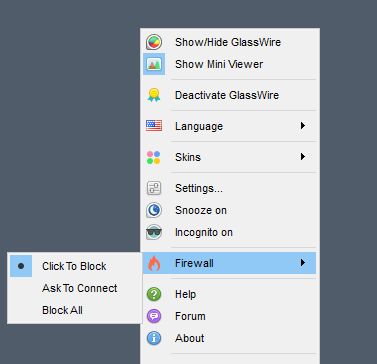
GlassWire 1.2.96 is now available for download. This update allows you to easily switch firewall modes by right clicking the GlassWire icon in the bottom right Windows tray area.  Thanks for requesting this feature in the forum so we could add it for you!

What else is new in this update?

  • The year is now added to the GlassWire network tab.
  • Three security upgrades were made due to HackerOne bug reports.
  • We fixed a problem where a network scan could cause the GlassWire service to crash.
  • We added protection so third party DLL files can no longer interact with GlassWire and cause it to crash.  Getting .dmp files on your desktop?  This update should solve that for you.


Download GlassWire 1.2.96 now to upgrade!


Blog

GlassWire 1.2.88 is here!

In our previous GlassWire update we changed how the “network” tab works by using new technology and making GlassWire scan more often for other network devices. Unfortunately, for some sophisticated network hardware and software, this constant scanning would give off false positive alerts saying GlassWire was causing network problems. In some cases the false positives would say GlassWire was causing an “ARP Storm”.

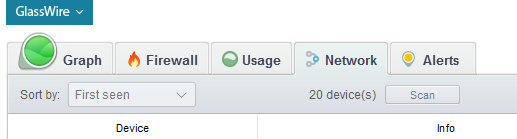
We solved this issue with GlassWire 1.2.88 by adding a manual “scan” button on the “network” tab. Paid GlassWire users now have a scan once every 30 minutes, or they can choose to scan manually any time. Free GlassWire users never scan the network at all unless they manually press the “scan” button.

Paid users can also disable the network scan completely if they want. To disable GlassWire’s network scanning feature as a paid user you can create a text file called glasswire.conf and place it in the c:\programdata\glasswire\service folder. Add this string to the text file: enable_network_scan = false then restart the GlassWire service. We plan to add a setting for this in the future.

This update also fixed some bugs reported by users, plus fixed a bug that caused some users to crash in some cases.

If you’re a free user and you’re curious about what the “network” tab does, it’s actually a fun feature.  If you buy GlassWire Basic, Pro, or Elite then GlassWire can alert you whenever a new unknown device joins your network.  GlassWire will then tell you some details about the device like its IP and what type of hardware it is.  For example if it’s an iPhone it will say it’s “Apple” hardware.

Please upgrade your GlassWire version today, and we at GlassWire wish you all a Happy New Year!

Download GlassWire 1.2.88 NowChange List

Blog

Detecting Malware with GlassWire

People often ask us how we came up with the idea for GlassWire.  The answer is, we built GlassWire because it was something we wanted for ourselves for our own PCs. Our team had tested all the different security software out there for our own personal use, but none of it did what we needed.

We wanted an application that looked at our PCs and exposed any network related changes that were taking place in real-time.  For example, if a network-connected application changes its hash or loses its signed certificate GlassWire tells you.  Or any time a new application on your PC accesses the network GlassWire tells you immediately with a “new” alert.

GlassWire also alerts you of software version changes, network related changes to Windows, new proxy connections, DNS server changes, along with letting you know of known suspicious hosts your PC is interacting with.

Our GlassWire theory is that modern malware will almost always make some kind of network related change to your PC.  We thought that if we were able to make it easy for normal people to see the network related changes that were happening on their PC then they would be able to catch malware that an antivirus might miss.  Also, we wanted to create something that any normal person could use and understand.

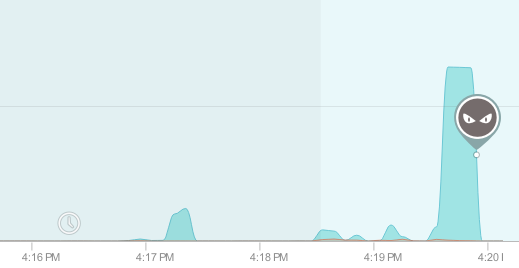
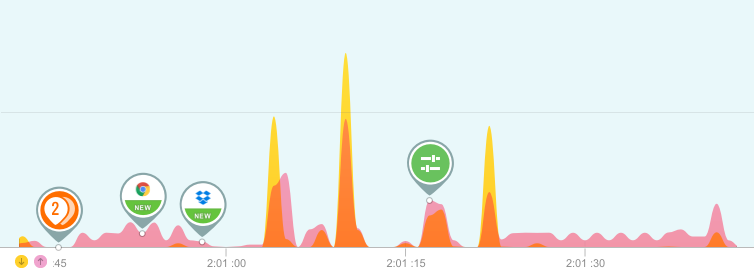
When we launched GlassWire, one of our first users emailed us and let us know he caught malware his antivirus had missed and we blogged about it.  The malware was starting new proxy connections from the infected PC and sending out huge amounts of data.  These multiple proxy connections and high data usage showed up in the GlassWire graph and warned the user something was wrong (as shown below).


So how can you use GlassWire to look out for possible malware infections?  We made a guide in our help area to help people check for malware infections.

First download and install GlassWire, then check the graph and see if you notice anything unusual happening.  Are there strange proxy connections when you don’t normally use a proxy?  Are there strange applications listed under the GlassWire “firewall” tab?  Did your DNS server change after installing that new ‘free’ program?  Are you seeing huge amounts of network activity when your PC is idle?  These PC behaviors can be a sign something is wrong.

It sounds counter-intuitive if your antivirus is failing you, but we recommend doing an antivirus scan if you’re worried about a problem.  Before doing the scan you should make absolutely sure your antivirus is up to date.  If your antivirus can’t update because it expired then uninstall it and try another program, or use Windows Defender to scan.  Windows Defender is free and part of Windows. Using Windows Defender to scan a second time could be a useful double-check even if your main antivirus is working OK.

If your antivirus doesn’t see anything but you still feel something is wrong you can try using VirusTotal.com to look for malware.  VirusTotal checks files against all popular antivirus engines and shows you if any antivirus programs mark your file as suspicious.  Look at your GlassWire Firewall tab and find the locations (on your PC hard drive) of any network-related applications that seem suspicious.  Click on the icon of the suspicious application and see if it’s signed at all, or signed by someone you recognize.

If the application seems suspicious find its location that GlassWire lists on your PC, then copy the file to your desktop (preferably without moving it) and upload it to VirusTotal.com and see its rating.  If VirusTotal shows that several antivirus applications have detected the application as malware, then you might be infected.

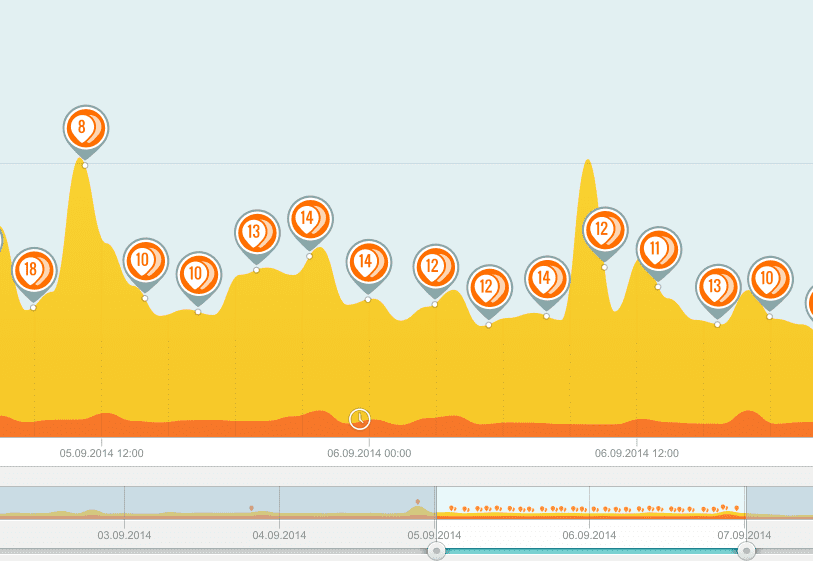
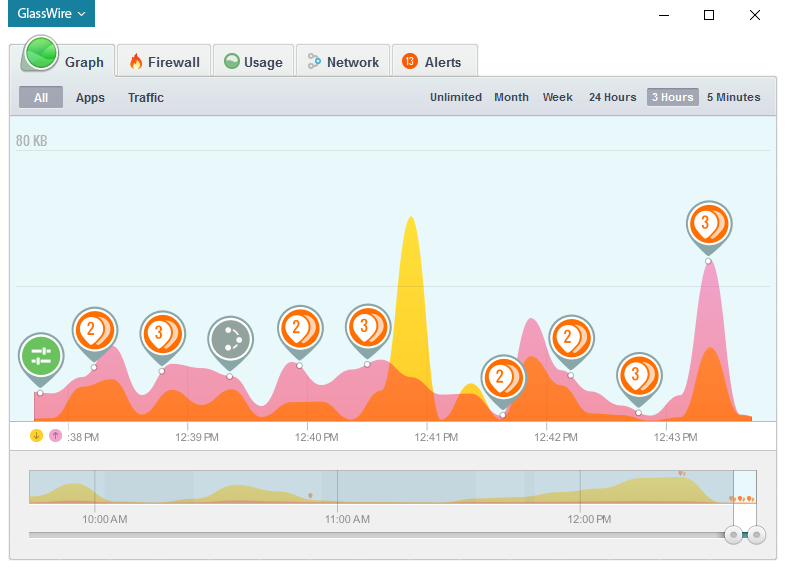
GlassWire also shows the hosts your PC is connecting with in real time.  If you see a spike in the GlassWire graph, click the graph to see what apps and hosts are responsible for the increase in network activity.

GlassWire automatically resolves the host names your PC is communicating with in real time, plus you can also check the flag next to the host name to see what country the server is in. For example if the host name shows an American flag the host is probably located in the USA.  If you’re unsure about the host you can also type IP addresses in to VirusTotal to check their safety.  If nothing shows up in VirusTotal for the host name you entered you can also consider typing the host into Google to see if anything unusual comes up.

Still feeling paranoid?  Try Microsoft’s Malicious Software Removal Tool and see if it comes up with anything.  And as always, GlassWire fans are glad to give their feedback in our forum any time you need help.

Also please consider upgrading to GlassWire Basic, Pro, or Elite to block all new connections with our paid Ask to connect mode.

Unfortunately there is no perfect tool for detecting and removing malware, but we hope this guide helps you understand how to use GlassWire to look for suspicious activity.

Blog

GlassWire 1.2.79 is here with device detection improvements!

new_update

With GlassWire 1.2.79 our team spent a lot of time rewriting how our “network” feature works for our paying users, and the results have been great!

Unfortunately with previous versions of GlassWire some of our users would report that some of their devices would show up as “unknown” or not show up at all.  Now with GlassWire 1.2.79 new devices show up almost immediately when joining the network.

One cool GlassWire feature that people wanted was the ability to know when a new device joined their network that has never joined before.  With GlassWire 1.2.79 these new devices show up almost instantly.  It’s great to know when a new device joins your network because if it’s not one you know of, it could be a malicious device you don’t want on your network.  You can then figure out what type of device it is because GlassWire will show you the manufacturer name in most cases.

If you don’t have a paid version of GlassWire you can upgrade here to use our “network” tab with this new improved functionality.  Paid users can click the “upgrade” download link below to update their software version and use this new functionality immediately.

Upgrade to GlassWire 1.2.79Change List

Blog

Use GlassWire to prevent apps from spying on you

prettynewgraph

Recently both WOT and Nvidia were in the news for the way their software was collecting and sending back data from their users.

WOT was in the news due to a report from a German TV channel.  The report claimed that WOT collects and sells data about your browsing habits, and then that collected data can be tracked back to specific users.

After reviewing the data, Mozilla (the creators of Firefox) removed the WOT plug-in from their add-ons directory. We at GlassWire were saddened by this news because we found WOT to be a useful resource for looking up websites to see if they were safe or not.

Nvidia was also in the news for collecting telemetry data, similar to what Microsoft started doing with Windows 10.  Please note though with Windows 10 in many cases it’s possible to stop telemetry data collection.  MajorGeeks has a detailed report and video on how to disable Telemetry with the Nvidia software, or you can go to the GlassWire Firewall tab and block the software from accessing the network at all.

Fortunately, if you’re a GlassWire user you can stop most badly behaving applications from sending any data about you out at all.  Paying GlassWire users can switch to GlassWire’s “Ask to connect” mode and block all new unknown connections from sending out any data about you.  Free GlassWire users will be notified when a “new” application accesses the network, then they can go to the Firewall tab and block the application.

Don’t have GlassWire’s “Ask to connect” feature yet?  Click here to upgrade to GlassWire Basic, Pro, or Elite!

You may also be wondering if GlassWire collects or sells user data.  Please note with GlassWire that none of your network usage data ever leaves your PC and we could never see it or collect it even if we wanted to.

Our privacy policy confirms this, and we even allow GlassWire to block itself with its own Firewall tab if you’re concerned.  However, we don’t recommend that you make GlassWire block itself or you won’t know about software updates, and your malicious host list will never be updated.

We built GlassWire as a tool for ourselves to stop malicious apps and malware from spying.  GlassWire makes money through sales of our Basic, Pro, and Elite software so we have no need to collect data about our users and sell it. Also, our entire team despises spying apps and we made GlassWire specifically to fight against that type of behavior!

Next time you download a free app check out its privacy policy first.  If you are not paying for the app then you yourself may be the product.  You should consider that if you are not paying for the software then it may be your browsing habits or other data about you that’s being sold to others.

Fortunately, you can always use GlassWire as a tool to see what apps are sending out data from your PC, and block them.

Update:  Howtogeek.com has an article on the Nvidia situation that says the Nvidia software is not spying and the situation was a misunderstanding.

Blog

The Internet of Sh*t is finally here, and it sure does stink!

internet_of_poop

You may have heard recently how the popular security blog Krebs on Security was taken offline by a record DDOS attack along with Friday’s major attack on DynDNS.

The reason these attacks are newsworthy is because the attacks are so massive that even the best anti-DDOS systems like Akamai’s could not keep Krebs or DynDNS online.  Cloudflare recently posted some visualizations to show how large these types of attacks can be.

The reason these attacks were so powerful was because they were created from a botnet of “Internet of Things” devices that are unsecured by default, also known as the “Internet of Sh*t”.  Hackers created this new botnet called Mirai that searches the Internet for unsecured  DVRs and IP cameras with default passwords.

Unfortunately, now the Mirai source code is available to anyone, so these attacks will probably become more frequent and grow even larger.  Currently live Mirai infections world-wide are mapped by a security site called Malwaretech.com and the infection has spread to almost every country world-wide.

One of our favorite Twitter accounts that we follow is called InternetOfShit.  The account makes fun of how ridiculous it is to connect all these new devices to the Internet, and how they are mostly unusable and unsafe.

For example, check out this Internet connected teapot that caused the owner to have to spend 11 hours trying to make a cup of tea!  At first the “Internet of Sh*t” was a joke, but now due to the Mirai botnet it’s becoming more serious and governments may try to create regulations to stop companies from creating hardware products that are insecure by default.

Do you think you may have an Internet of Sh*t device on your network?  Go to GlassWire’s “Network” tab to see a list of all the devices on your network and get alerted when a new unknown device joins your network.

If you do have a Sh*t device on your network please do us all a favor and unplug it, or at least change the default password.  Not only could your Sh*t device be sending out DDOS attacks, it’s probably slowing your Internet access down considerably.

By the way… if you haven’t already, don’t forget to follow the InternetOfShit!

Blog

GlassWire 1.2.76 released!

newupdate

GlassWire 1.2.76 is now available for download.

This update uses a new default listening port (7010) for remote access to other GlassWire clients.  If you have remote GlassWire clients you are monitoring you’ll need to update your local client along with the remote client or the connection will fail.  The ports were changed due to user feedback.  Apparently some network security software will give false positives if certain ports are used.  This will be a one time change and we apologize for the inconvenience.

Please note that you can still use any port you prefer with GlassWire by going to GlassWire’s settings, then the “Server” tab, then changing the port numbers there.

We also removed an old cipher that could be used locally between the client and the service, fixed a problem where some free users had a crash when trying to make a remote connection, made GlassWire’s history deletion more secure, and made some changes so local traffic is detected more accurately.

Download GlassWire 1.2.76 nowChange List

Blog

Preventing others from seeing what websites you’re currently logged into

spying_logged_on_websites

Did you know that any website you visit could be making a log of all the other websites you’re currently logged into?

Some websites do this without your permission to build a profile about you to show you targeted ads.  Unfortunately, this data could also be used against you to attempt to hack you by sending you targeted exploits, clickjacking links, or phishing sites.

Do you think this problem doesn’t apply to you?  You’re probably wrong.

Check out this Github page by Robin Linus that will show you what sites you’re currently logged into.

How was Robin able to create this page?  As Robin explains on the page, websites can track what other sites you are logged on to by tracking whether certain favicons or images load or not.

How can you avoid being tracked like this?

Robin suggests a plug-In like Privacy Badger https://www.eff.org/privacybadger from the Electronic Frontier Foundation (please support them if you can, we do).

Another technique that can help is called “browser isolation”.  One simple way to do this is to dedicate one browser for your major social media or login accounts, then use a separate more secured browser for web surfing.  You can also use a “Private Window” or “Incognito mode” window in your browser separate from your logged in browser to surf the web.

The truly paranoid GlassWIre user could set up a virtual machine with a VPN, then only surf the web from that virtual machine.

Once you feel you’re protected visit Robin’s page again to confirm your logged on sites are safe again!

Blog

How to see if your VPN is leaking your IP and stop it

vpn_ip_leak_test

Do you use a VPN?  Well… your IP may be leaking.
Most people don’t realize there are three main ways your VPN can leak your IP address to the public.  Fortunately, there are also three fixes you can implement to solve this problem.

First let’s see if your VPN is leaking your IP to the public.  Connect your VPN and visit IPLeak.net to see what your IP address is verses what IPLeak.net shows.

If everything looks good and your real IP is not visible then you can probably stop reading now, however if your real IP is visible there are some things you can do to fix it.

Tip:  Not sure what your real IP is?  Turn off your VPN and go to whatismyip.com.  You can then turn on your VPN and see what whatismyip.com shows for your VPN IP.

Problem 1:  WebRTC Leakage
The most common problem VPN users face is the WebRTC IP leakage problem.  To fix the problem with Firefox you can type in about:config in the address bar, then go to media.peerconnection.enabled and set it to false.  For Chrome there is an extension called Scriptsafe you can install and the reviews look positive, but please use it at your own risk.  It’s probably best to use Firefox while using your VPN.

Problem 2: DNS Leakage
The second common problem with VPN IP leakage is DNS leakage.  First, before doing anything check your VPN software that came from your provider and see if it has any settings that will plug the DNS leak.  If you have no luck then it’s probably a good idea to use different DNS servers that are not associated with your geographic location or ISP.  OpenDNS and GoogleDNS are two free options that are out there.

Problem 3:  IPv6 Leaks
Now go check out IPLeak.net and see if you’re still leaking.  If you’re still leaking your real IP the next step is to disable IPv6.  For Windows you’ll need to go to the “Network and Internet” control panel then choose “Network Connections” and right click each entry to change the settings for each network adapter.  Where it says “Internet Protocol Version 6” you’ll want to uncheck the box.

Now turn on your VPN and visit IPleak.net one more time and you should see your real IP is no longer visible.  That is a lot of work to do something that you thought your VPN was already doing, isn’t it?  Congratulations on being one of the few people who uses a VPN with no IP leakage!

Don’t use a VPN?  A VPN is a virtual private network and many people use one to use the Internet safely on public WiFi hotspots, or to hide their IP address when using the web for privacy reasons.  Check out this Blog post we wrote recently that explains the benefits of a VPN and how to get one.

We at GlassWire recommend Private Internet Access for VPN serviceGet 58% off of PIA VPN service when you sign up through our link.  Also we’re a PIA affiliate so when you sign up through our link it also supports GlassWire.  Not a fan of PIA?  Check out this list of recommended alternative VPN services by Cloudwards.

Blog

How to remove your house from Google Street View (Google Maps)

how_to_remove_house_streetview

By now, almost everyone has typed in their home address on Google Maps to see the viewable Google Street View image.  Google Street View provides panoramic views of most major streets and cities all over the world.  The images are stitched together mostly by Google cars that have a large camera on top.  Perhaps you’ve even seen a Google Street View car driving around before.

Google Street View cars have taken all kinds of interesting photos over the years, and maybe you’re happy that there’s an easily accessible picture of your house online anyone can look at.  However, if you don’t want a picture of your house online for anyone to see, it’s easy to remove your house from Google Street View.

How can I remove my house from Google Street View?

To remove your house from Google Street View go to www.google.com/maps then type in your home address.  Next, click on the small picture of your house that says “Street View”.  If there is no photo then perhaps your house isn’t in Google Street View at all.  Now, adjust the arrows on Google Street View until you see your house.

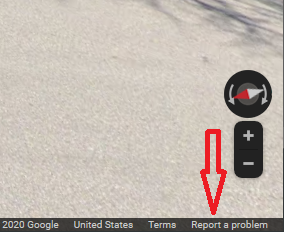
You can then click the “Report a Problem” link at the bottom right of the image as it’s shown in the photo below.

The next page you are sent to will give you the option to ask that your house is blurred.  It will show some photos of your house, then you can choose the ones you wish to blur out.  In some cases there could even be an actual photo of you if you happened to be outside when Google’s street view vehicle drove by.  If that’s the case then you can select that picture and ask that it be blurred.

Our team at GlassWire tested our own home addresses and found the photos of our homes were blurred within several weeks of our reports.  However, once you remove your house it appears you can’t ever have it re-added, so please be 100% sure you want to remove your house before filing a report with Google.

Many real estate websites and services like Realtor.com, Redfin, or Zillow make use of Google’s Street View images.  If you think blurring your home on Street View could make it more difficult to sell your home the future then you may not want to remove it from Google Street View.

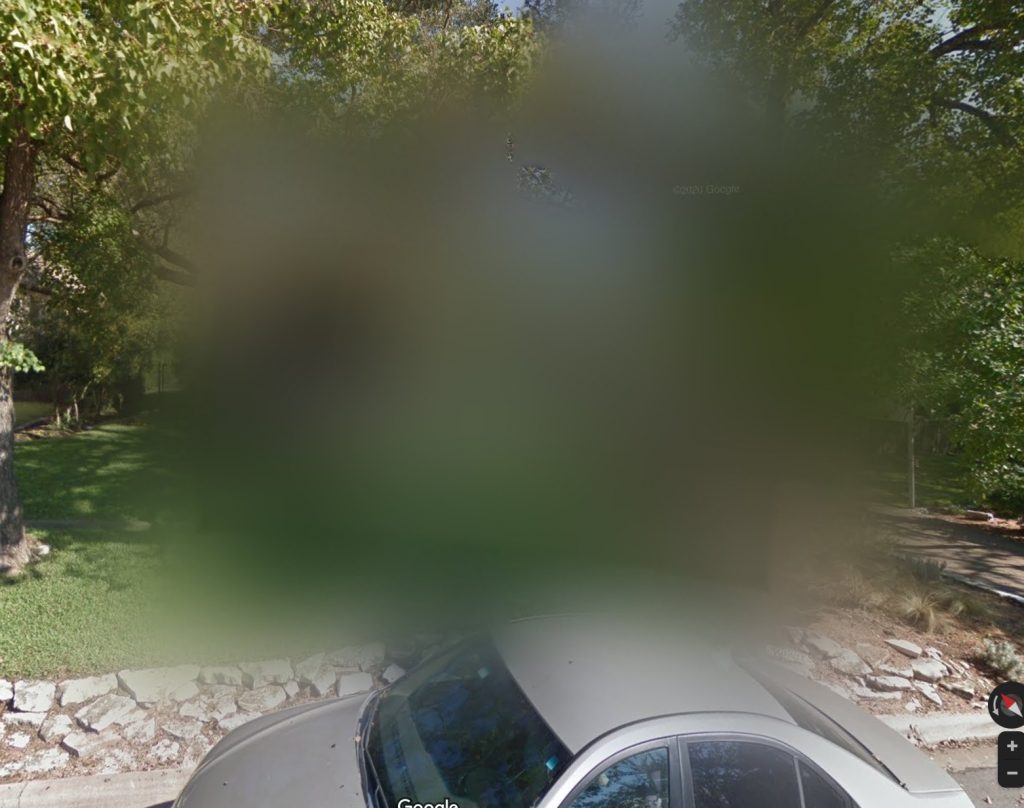
An image of a home removed from Google Street View.

(Updated for 2021)

Blog

GlassWire 1.2.73 now available!

good_graph

We are proud to announce that GlassWire has officially left its beta status behind with version 1.2.73.  This GlassWire update fixed a bug with IP sorting on the network tab, fixed a problem where some users saw incorrect local/external traffic stats, along with other fixes listed here.

Thank you for your feedback and support that helped us reach this major milestone.

Upgrade to GlassWire 1.2.73