Blog

What is Azurewave Device?

azurewave technology modules

The rate of spread for connected devices has increased at a ridiculous pace over the last few years and amog them, Azurewave devices keep on appearing in our domestic network. Internet-of-Things (IOT) is now part of our daily activities and the number of devices that can be automated is endless. The technology is Wi-Fi driven, meaning that it’s essential for the devices to be constantly connected to the internet via a router.

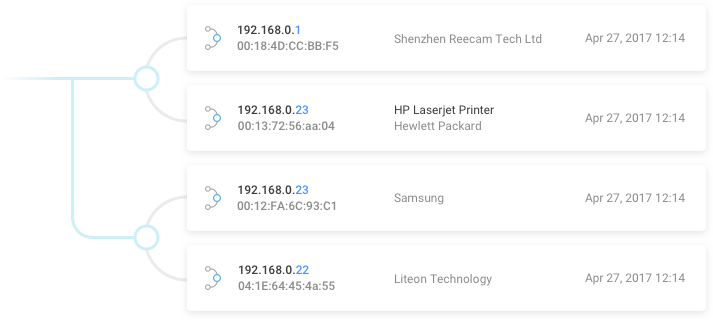
Azurewave Technology consistently provides Wi-Fi modules and solutions for desktop Pc and IoT devices. Many partner companies that produce IoT devices are leveraging the quality of their wireless modules. They install them directly in devices such as laundries or air conditioners turning regular, offline, electronical home appliances into smart devices that you can easily control via your mobile. Once installed, these devices are usually visible on the network with the name of the manufacturer, e.g. Azurewave.

You can also install Azurewave modules in DIY automation projects. You can connect up to six wireless tools using Azurewave products. They make amazing small devices and modules within their unit. Azurewave modules are improved through computerized processing, making them applicable for wireless purposes or Wi-Fi on most devices.

This article will provide comprehensive details about Azurewave devices and products. Read on below to find out more about Azurewave Devices.

A Guide on Azurewave Devices

In 2005, Azurewave was firstly founded as a company leading in providing software solutions, production, and design. Since then, their manufacturing process mainly focuses on producing home appliances, laptops, automotive appliances, personal computers, and much more. Taiwan is the headquarters of the company.

The wireless modules produced by Azurewave technology are highly compatible with a lot of devices. Over the years, they produced various products such as wireless modules, remote modules, camera modules, and others but the most common and recent modules are wifi, a digital camera, and Bluetooth.

Why use Azurewave devices? Here are four reasons why it is preferable to use these devices:

  1. Spatial propagation
  2. They support various Network Bandwidth
  3. Spatial stream transmission
  4. Short guard breach of 400ns

You can get these devices in various products, such as Wi-Fi, DTV, GPS, Bluetooth, and camera modules.

Azurewave technology is an image processing and wireless solution that offers different devices. Most businesses and households use Azurewave modules as well as their devices and products.

Some of the devices using their modules include:

  • DTV
  • Cameras
  • PC
  • Laptops
  • Mobile Phones
  • Wi-Fi
  • Bluetooth
  • GPS
  • Home Automation System

Azurewave Modules

Azurewave technology offers different modules you can use at home or in your business.

Here are some of the best modules they provide:

Camera Modules

Azurewave technology released its 360 underlying panomorph excellent camera. It became the answer for cell phones, consecutive cameras, activities cameras, as well as other photographing gadgets.

Similarly, an extraordinary 360 encounter requires unique and quality pictures. Azurewave confirmed that all their gadgets or items using their proprietary Panomorph camera procedure would make recordings of 360 for spilling live on various web-based media.

The focal points of the 360 panomorph camera are the only focal points that produce extraordinary quality in an exact configuration perfect for mobile phones.

Remote Modules

The company also provides wifi models like WLAN and WPAN and Bluetooth models such as WWAN modules applicable to different applications.

Some modules involve MM.2 1216 and M.2 1630/2230, which are patch-down and attachment modules. It also contains IoTModule, a type bind below module for wifi or Bluetooth, sound or voice SoM, and the SiPMolding Modules.

It can include programming or application or winding down capacities from other application processors.

Other modules may include:

  • IoT Module for Providing Service 

If you are working on a device or project based on IoT, you need to use a wireless module for your project to connect with a cloud server.

Most developers use AWS cloud while using IoT models. However, if you want the best and fastest connectivity while using the AWS cloud, you need their IOT wireless module.

It would help if you used IOT modules because they will offer long-lasting and stable connections with zero interruptions. AWS cloud allows you to connect different OIT devices simultaneously.

  • MCU Modules 

We are now in the modern age, and if you want your home to be completely automated without having to replace your home appliance, you need to check out Azurewave technology.

Azurewave provides a microprocessor unit that converts all your devices into IoT devices using wifi.

You can change your old devices such as cameras and hone and make them new. MCU contains two units: AW-CU427-P and AW-CU300. You can use both with or without a host.

How’s Azurewave Products Security?

Products from Azurewave technology work best while using IEEE 802. 1li, which works well with 64-bit and 128-bit and also encryption of WPA or WPA2. Azurewave products are not linked with security.

WEP is denounced by those who aren’t aware.

You may be curious why the device is fragile and insecure when attacked. For this reason, WPA 2 is quickly replacing WPA 3 in the networking sector.

The main challenge facing these products is that Azurewave cannot sustain data encryption, particularly the 256-bit, one of the most secure groups.

Conclusion

Lastly, azurewave is the best company supplying production, image processing, wireless, design, and software devices in the technology market.

This company has worked with different technology like Glasswire to bring you the best wireless devices. Azurewave technology provides camera and wifi solutions for mobiles and pc. All these products serve you in different ways.

Blog

Firewall for network, improve your security with Glasswire

firewall for network

A firewall for your network

Why installing a firewall for network? The global business world is spending hundreds of billions of dollars every year on acquiring and evolving their assets to digital. Figures say the rate is rapidly growing and will quickly reach 3 trillion dollars per year by 2025. 

With digital assets at the core of most businesses, sound network infrastructure is key to avoiding nasty surprises while keeping your revenue stream high.

A firewall is a fundamental security measure that creates a barrier between your network of devices and the external network. In doing so, it protects you against external threats such as malware and hackers trying to gain access to your data and system.

Adopting one is ultimately the first quick win for your network to be safe.

What can a firewall do for your network safety?

Firewalls come with a set of perks and enhance your network health and security.

Find below a list of major benefits of adopting a firewall solution.

  1. Monitor data flow

Trojans and other malware silently sit on the back of your computer, exchanging data with malicious actors through your wi-fi. The first action a user can take is to monitor where the data goes and comes from and its volume, in real-time. 

GlassWire is working on a brand new feature able to compare the single user data for each app with a benchmark average obtained from its user base.

This will highlight suspicious activity such as anomalies in the volumes of data exchanged, and let the user block the jeopardizing piece of software with a single click.

  1. Local access control

Adopting a firewall for the home network is the first-tier security line against cyber attacks. Monitoring wouldn’t be enough if not matched with the capability to control single app behaviors and secure your endpoint. A firewall should provide you with the ability to allow or deny your apps from exchanging data. Taking control over all the hosts and services that want to access your computer is underrated but is actually among the most powerful features in terms of security. 

A firewall allows you to customize a rule set for content filtering, thus allowing you to lock down the internet connection against unwanted packets of data. The simplest yet the most effective anti-malware.

  1. Remote access control

Taking care of security is pretty straightforward when you own just a single computer or a local network. It’s indeed as simple as installing a firewall for the internal network and a malware detector. Things get way more complicated if you own remote-connected devices. 

In fact, one of the best features a firewall can provide is the ability to track the apps and services running on a number of devices connected remotely. You could then block those services individually and have control over the data flows they exchange.

  1. Prevent virus attacks and hacking

Threats in the digital ecosystem are basically everywhere. Tuning your firewall for network security may prevent a virus from entering your computer and hackers from forcing your defenses. It may seem simplistic, but the very first line of defense comes from technology as simple as a filter, a firewall. 

By only admitting the desired data, you could drastically improve your level of security. It’s no news that the concept of a firewall applies also to humans, where a person himself acts as a filter in disclosing certain information.

The 5 Types of Firewall

If every firewall has its own architecture, is important to highlight the 5 main technologies on which they build.

  1. Packet filtering firewall

This technology acts at the junction points between devices, such as modems and computers, and filters data packets according to certain rules. If a packet doesn’t pass the rules (IP address, packet type, port number, etc…) is simply blocked. 

  1. Circuit-level gateway

The circuit-level gateway acts at the very beginning of a TCP connection, allowing only legitimate sessions. They filter out traffic that doesn’t respect established network protocols such as TCP handshakes and session initiation messages.

  1. Application-level gateway (aka proxy firewall)

An Application-level gateway constitutes the only entry and exit point between the network and the device. It filters data by a number of characteristics such as the service for which they are intended, the destination port, and the HTTP request string.

  1. Stateful inspection firewall

More complex technology is one of the so-called stateful inspection firewalls, not only matching each packet with a set of rules but also checking whether the packets are part of a certain network session or not.

If on the one hand, this is way more effective in terms of security, on the other hand, it requires more computational resources, resulting in less network performance.

  1. Next-generation firewall (NGFW)

Next-generation firewalls are powerful software leveraging a variety of deep packet inspection (DPI), antivirus, and malware filtering. Moreover, they validate the packets after being assembled over a web browsing session, filtering out packets that don’t constitute a legitimate HTML-formatted response.

New cybersecurity challenges

New habits like remote working and cyber threats raising at large pose new cyber security challenges. Working remotely from home with a company device, for example, creates a new vulnerability scenario, that a malicious actor could take advantage of.

A home network may easily constitute a vulnerable company entry point and this is the reason for an endpoint cybersecurity solution on both personal and company devices.

Adopting firewall software for the home network will result in better protection for personal and business computers.

Blog

Upgrade to GlassWire 2.3 with new IOT detection features!

Upgrade to GlassWire 2.3.318 Now!

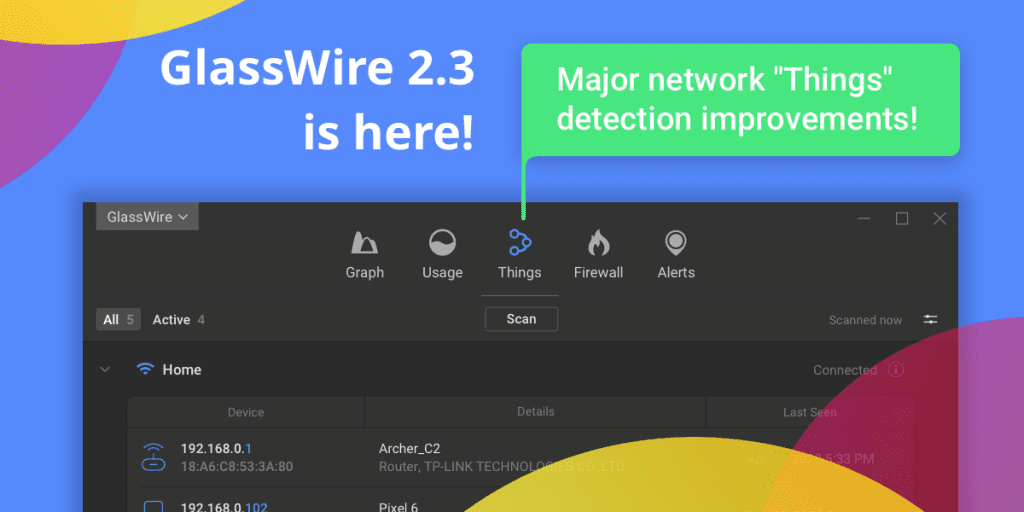
Do you use GlassWire to keep track of all the devices (Internet of Things) on your network? GlassWire’s “Things” tab has been completely redesigned with all new IOT features with GlassWire 2.3.318!

To use the new features first go to our “Things” screen. Now click the “i” icon next to “connected” on the top right part of the screen to see some basic information about your network. You can now use GlassWire to see your current IP addresses, Mac address, Gateway info, and your DNS servers.

Next you’ll notice how GlassWire keeps a list of all your devices that have ever been on your network. If a device joined and left while you weren’t using GlassWire you’ll now see the details about this device under the “All” sorting option. Want to remove a device or remove multiple devices from the list? Mouse over the device you want to remove, then you’ll see a small three dot menu to the right that looks like this (…). Click it, then choose “forget device”. You’ll also notice that GlassWire keeps separate lists of devices, depending on what network you join. For example if you go to a coffee shop and use the WiFi there this list of devices should not interfere with your home list of devices.

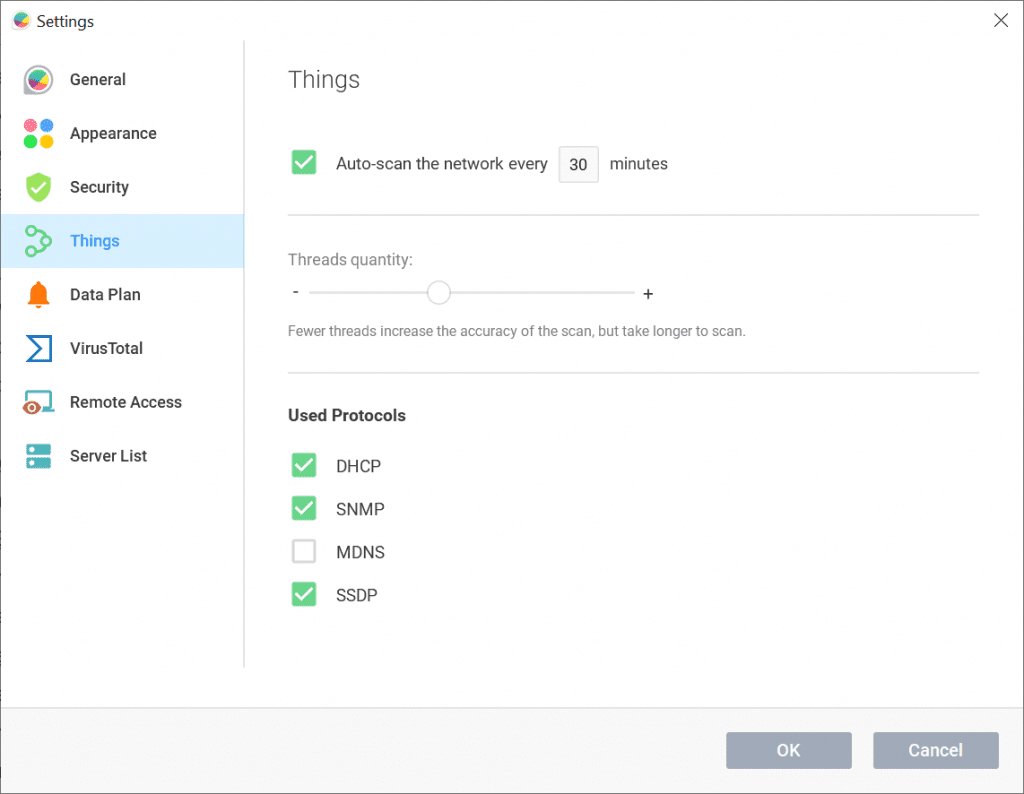
You’ll also notice GlassWire’s “Things” detection scanning is much faster, and more reliable. To change GlassWire’s scanning speed, options, and technologies, go to the top right settings icon that is directly below the top right “X” icon that you use to close the GlassWire main window. Click the settings icon and you’ll see different options to sort your devices in the list.

You can also choose “more” to access the dedicated “Things” settings as shown in the image above. It’s now possible to change the “threads quantity” with GlassWire’s scanning. Moving the slider to the left makes GlassWire scan slower, but more accurately. Moving the slider to the right can make a very fast scan, but in some cases some devices can be missed. We let you decide which setting is best, but we recommend putting the slider somewhere near the middle. You can also disable certain scanning protocols if it causes problems with your corporate or home network. All networks can be different with some networks only having one or two devices, while other networks may have thousands of devices. This feature lets you adjust our scanning settings depending on how many devices you have to deal with on a daily basis.

Would you prefer to only get alerted by GlassWire when a new unknown device joins your network? If so, go to our top left menu and choose “settings”. Now click “Security” then “Things Monitor”. Check the box “notify me” then make sure “report only new unknown devices” is selected. Now GlassWire will alert you when a new unknown device joins your network. You can also choose to get alerted every single time a devices joins/leaves the network, but you may find those alerts annoying if you have a lot of devices on your network.

Do you want to keep notes about the devices on your network? With GlassWire 2.3 it’s easy! Mouse over the device you want to add notes to, then click the three dot menu (…) on the right side. Now choose “device name” to add a custom name and description for a device.

This major update also has a lot of other changes and fixes that we made due to GlassWire fan emails and forum posts. Check out the full change list for GlassWire 2.3.318 here.

Get GlassWire 2.3.318 Full or GlassWire 2.3.318 Lite and upgrade your IOT detection today!

Blog

How to estimate your phone or ISP data usage

how to check your data usage

Many mobile or ISP data plans have strict data caps that can cause you to get hit with massive overage fees. Some mobile companies even offer something called “unlimited” data, but in reality after you hit a certain cap you’ll be throttled. Ridiculous isn’t it?

How can you estimate your data usage to stay under these barbaric data caps in 2021? Fortunately, we at GlassWire have made a free Data Usage Calculator estimation tool to help you stay under your limits!

Our new Data Usage Calculator makes it easy to estimate what your average data usage will be per month, week, or day for your mobile phone or WiFi network. With our data usage calculation tool you can see what apps and services use the most bandwidth, and how much data you’ll use per app or service.

For example, see how much data video streaming services like Youtube or Netflix use. Or calculate how much bandwidth you’ll be using in a Zoom video meeting, or just by using Facebook on your phone.

Try our Data Usage Calculator now for free to estimate your monthly data usage. You’ll be able to calculate exactly how much 250 GB of data per month really is.

Calculate your Monthly Data Usage Free!

Blog

Introducing GlassWire Lite!

GlassWire Firewall Lite with less resources

Since GlassWire was introduced in 2014 over 20 million people have used our software to help protect their devices from privacy violating apps, bandwidth hogs, and malware.

However, for some people who need to use very minimal hardware resources, GlassWire’s resource usage requirements can be just a little too much.

For example we have one customer who runs a server at a remote location with very limited connectivity and limited resources. It’s critical that they use GlassWire to secure their server and keep their bandwidth in check, but they are also extremely limited by the unique server hardware they use.

We’ve listened carefully to the feedback from that customer and others who have unique hardware resource usage requirements and we’ve designed a special version of GlassWire just for them.

Today we’re excited to introduce GlassWire Lite! This optional new version of GlassWire uses less than 1/3 the memory that our normal GlassWire software uses and writes 1/20th of the disk write operations. And just like our original GlassWire version its CPU usage should usually be almost zero.

To make this super light version of GlassWire we made it collect very minimal host data. If you’re using GlassWire Lite you’ll find you’ll only see hosts on the Firewall tab, and in “New” and “Ask to Connect” notifications.

If tracking hosts is important to you then you’ll probably want to stick with our powerful original GlassWire version. But if you don’t need to track hosts we recommend that you give GlassWire Lite a try.

If you’re a Basic, Pro, or Elite user you can use your license on GlassWire Lite and it works exactly the same.

Please note if you switch to GlassWire Lite from our original GlassWire version your history and settings will be completely reset because GlassWire Live uses a different database structure. Our installer window warns about this.

However, when you install GlassWire Lite over GlassWire, your original GlassWire history will be backed up and moved inside the GlassWire folder. If you find GlassWire Lite is not for you then you should be able to install GlassWire again over itself, and your original GlassWire history should return with no issues.

Please note if you’re concerned about losing your GlassWire history you can back up your database before trying GlassWire Lite.

To try GlassWire Lite visit our download page, then look for the logo at the bottom left of the page and download it.

We hope you enjoy this new version of GlassWire and we appreciate your feedback.

Have comments about this new version of GlassWire? Please give us feedback by commenting on this post, or let us know in the forum.

Blog

GlassWire 2.2 for Windows now available!

Our team has spent many months completely rewriting GlassWire’s backend from scratch.  With this new major update GlassWire now uses significantly less memory, and even less disk resources. 

We’ve also added a new free dark theme we call “asphalt”.  Go to the top left GlassWire menu to try it out.

What else is new with GlassWire 2.2?
– GlassWire now starts much faster!
– DNS resolving is improved.
– Graph data loading is faster!
– VirusTotal analyzing is faster!
– Things device discovery and resolving now works much better!
– Many other bug fixes and improvements.
– Remote monitoring is now even more secure and improved.  Please note it’s required that you update your client and server with this update.
– GlassWire now has a speed meter in the mini viewer.

Download GlassWire 2.2 now!

Please give the update a try and let us know your results in the forum, or email us if you need help.

Our complete list of all the changes in 2.2 are available here.

Blog

3 simple ways to check a file’s hash with Windows

Why would someone want to know the hash of a file on Windows?

Software developers sometimes list the hash of a file when distributing it over the Internet to help others verify the file’s integrity.

Please see this SHA256 hash example for our GlassWire installer version 2.2.201.

The purpose of publishing the hash is to help you verify that the file you are downloading is the actual file the developer is distributing.

If the file is manipulated some way then the hash will change. For example, perhaps the file is actually malware or perhaps some other change has been made to the file to make it malicious in some way. Or maybe it’s the completely wrong file that was mistakenly uploaded to the wrong place.

How can I check a file’s hash on Windows?

One super quick and easy way to check a file is to upload the file to VirusTotal.com. VirusTotal is a free file analysis service created for the information security community. You can upload the file there and it will automatically show you the hash of the file. Then on top of this it will also show how the file is analyzed by many different antivirus engines. Please note that VirusTotal is not an antivirus, and some engines may incorrectly analyze a file as malware. This false analysis is called a false positive.

Please also note that you’ll be uploading this file to a third party server so you should not upload any files that should be kept private.

A second more private way to check a file’s hash is to open the Windows command prompt and use the certutil command for Windows.

An example of this simple command is below:

certutil -hashfile c:\Users\YourUserName\Desktop\wire.exe SHA256

This Windows command example would return the SHA256 hash of the file located at the specified path. You should update the command to show the correct path, user name, and file name for your file integrity check.

You can also use other values after SHA, such as 1 or 256, to produce the corresponding hash. With GlassWire’s example above we have chosen to use a SHA256 hash for our file.

A third easy way to find the hash of a file is to use the Windows 10 Power Shell. First open the Windows Powershell (click “Start” then type “Powershell” then click it), then use the command below checking the file “wire.exe” as an example. Of course YourUserName should be your user name, and you should use the correct path to the file you want to check.

Get-FileHash -Path c:\Users\YourUserName\Desktop\wire.exe -Algorithm SHA256.

How to use the Windows Powershell to find the file’s hash.

I hope this guide helped you easily find and verify the hash of a file on Windows!

The reason we made this guide is because we make a popular network security monitoring software for Windows called GlassWire. You can download GlassWire and try it free if you’d like.

Looking for GlassWire’s installer hash? Just click “change list” on our download page to verify the hash for every installer we have ever released.

Wikipedia also has a great page if you are looking to learn even more about file verification methods.

Blog

GlassWire 3.0 for Android is now LIVE!

In 2018 we released our first major GlassWire Android update. We were fortunate that our fans loved the app and we were proud to have a 4.8 rating in Google Play!

Then later in 2019 Android 10 was released by Google. Unfortunately Google made it impossible for us to graph network data in real-time due to unexpected changes with an API we used. As our user base updated their phones to the latest Android OS versions they would find real-time data would no longer update reliably and our ratings fell.

We opened a ticket with Google and they marked it as “won’t fix”. We also found that Google made it impossible for us to block data by WiFi only, or Mobile only with our firewall.

Then even worse, many phones would kill our app completely so it couldn’t count accurately, or count at all in some cases. We were not the only developers with this issue either. It was a very difficult, sad, and stressful time for our team.

We could have given up, but instead we decided to completely rewrite the GlassWire Android app from scratch and make it super light and accurate, and that’s what we did!

We’re excited to announce that our major Android update is now available this morning in Google Play!

This image has an empty alt attribute; its file name is 2000px-Get_it_on_Google_play.svg_-768x226-1.png

While the new app doesn’t show real-time stats due to limitations made by Google, it’s now super light and it should always count data perfectly!

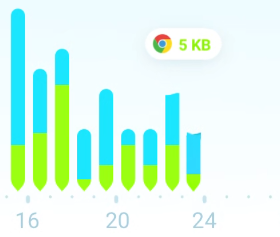
It also has an awesome new bubble effect that shows what apps are using your data.

In this example Chrome is using mobile data.

Plus, our 3.0 GlassWire update should never get killed, no matter how angry your phone is at it! This is due to how light the new GlassWire app now runs and how little resources it uses.

The firewall has now also changed where you can create firewall profiles. Create one profile for WiFi, and another for Mobile. It’s super easy to use!

The updated firewall can also allow or deny connections from newly installed apps. Ever have an app immediately use up your data immediately on install? This should never happen again if “allow or deny” mode is switched to “on” with GlassWire’s updated firewall.

Like dark themes? We know how important it is to have a dark theme these days, so we have included one dark theme for free for all Android users who use our app. And of course paid users get access to a bunch of different dark and light themes!

We have also rewritten our “speed meter” feature to make it work for the latest Android OS versions. Rewriting the speed meter was major work for us so we have made this one of our paid features going forward.

GlassWire for Android is an ad-free tracking-free app. In fact our app can’t access the network at all! Check our privacy policy for details on how we can’t access your stats at all because they never leave your phone.

We feel it’s important to be one of the few data management apps on Android that doesn’t track users, or fill up their phones with ads.

Since we have no ads we depend on our fans paying a few dollars to support our work. We’re grateful for those that decided to do so, but even if you don’t purchase GlassWire, our app is extremely powerful even with its free functionality and it will never expire or stop working.

Almost a million people have used our Android app to stay under data limits, reveal data wasters, and save money on their data plans!

GlassWire (free or paid) will always reveal data wasting apps, or suspicious app behavior. Our app will alert you any time a newly installed app starts using data. Plus we now have new more accurate data plans that track roaming, have zero rated app options, and can keep track of roll-over minutes. Monitoring data usage is especially important with new 5G phones that are using data faster than ever!

And of course if you don’t like apps tracking you or wasting your precious data without your permission use our paid firewall to instantly block them.

Why do many free “Data Usage” apps use data themselves?
We discovered a lot of these free data usage collection apps exist solely to collect your personal app usage data to sell to advertisers or other app developers. We did not want to use a data usage app that was logging details about every app we use to share it with third parties. In what database was our private app usage data being stored, and what if that database was hacked or made public? To make matters worse, we found that at least one of these applications collected personally identifiable information.

Is your current “Data Usage” app tracking you?
Do you want your phone app usage logged in a database then linked to your identity so others can see details about how you use your phone every day? We didn’t want that either. Check the privacy policy of the data usage app you currently use by going to their Google Play app page “privacy policy”.

GlassWire is a data usage app that helps protect your privacy.
Your GlassWire data usage and app usage information never leaves your phone. We could not see or access your app usage even if we wanted to. Plus, we’re not an advertising or marketing company. We only make money through sales of premium versions of our software.

Thanks for trying our major update out and if you enjoy the update please consider leaving a review on Google Play or subscribing!

Give GlassWire 3.0 for Android a try now!

We’d really like to hear your feedback and we are grateful for bug reports. If you find any issues please tap the bottom right menu inside the app itself and choose “send feedback”. Or join our forum to discuss GlassWire 3.0 for Android!

Sincerely, The GlassWire Team

Blog

Does your hotel room or Airbnb have a hidden spy camera?

Ever use an Airbnb?  According to the Airbnb website in some situations it may be OK if there is a camera inside your room monitoring you in real-time.  The owner of the Airbnb only has to acknowledge the camera exists.  Creepy isn’t it?

Unfortunately, many guests don’t know about this rule and don’t read their Airbnb listing carefully.  Imagine being in a rush and quickly having to find a hotel room for a vacation or event.  It’s easy to miss a small notice that says “camera in room” in a long Airbnb descriptive listing.

And what about hosts who have decided this disclosure rule doesn’t apply to them?  They may be thinking that if they just hide their camera they can have the best of both worlds.  Why not have full surveillance of their Airbnb and no disclosure on their listing?  They wouldn’t want to damage their income, would they? 

It wouldn’t be the first time a host broke the Airbnb rules.  And it wouldn’t be the first time a hotel illegally spied on their guests.

So how can you protect yourself from spying cameras in your hotel or Airbnb? 

First fire up GlassWire for Windows and join your Airbnb or Hotel WiFi network if you feel it’s safe to do so.  Now click the “Things” tab.  What all is listed there?  See anything from “Nest” or “Ring” or any unusual hardware types or names?  You may just have a camera pointed at you.

The GlassWire “Things” (Internet of Things) feature can usually detect hidden cameras on your WiFi network.

Take a walk around the inside of the room.  See any unusual items sitting out or strange things sticking out of vents?  One way to get an idea about how hidden cameras look is to do an Amazon.com search for “hidden camera”.  You’ll find clocks, pens, fake USB stands, power bricks, and all kinds of things with cameras in them. 

If you’re seeing a device on GlassWire’s “Things” but you can’t find a camera inside the room then maybe take a walk around outside.  Perhaps it’s an outdoor camera you don’t have to worry as much about.

Another way to find a camera is to detect it through your mobile phone camera lens.  Turn off the lights in your room.  Now use the front “selfie” camera on your phone and point it around the room looking for a purple or white glow. 

If you’re unsure if your front phone camera detects infrared light or not you can point a TV remote control at it while in the dark.  Please note that AppleTV remotes use Bluetooth to connect and are not infrared.  You’ll need to check with an old style TV remote.

There are also hardware devices for sale that will send out a flashing light which can help you catch difficult to see camera lenses.  I have tried some of those devices and they seem neat but if you’re staying in a small space you can almost always spot hidden cameras without having to purchase a dedicated hardware device.  Just take your time, then use your camera and GlassWire.  With a little time and effort you can usually be sure you aren’t being monitored by a hidden camera.

Blog

Have you received this new type of RDP (remote desktop) blackmail email?

Did you receive this threatening email?

Recently a member of our team found a threatening message in her personal email account spam folder.

The email said:

“I installed a software on the adult videos (pornographic material) web-site and do you know what, you visited this website to have fun (you know what I mean).  While you were viewing videos, your web browser began working as a Remote Desktop that has a keylogger which gave me accessibility to your display and also cam.”

The scammer then asks for payment via Bitcoin to avoid posting of an embarrassing video.

KrebsonSecurity reports that this type of sextortion email can seem realistic because the sender will sometimes use a real password that you may have used in the past on one of your email accounts.

But how did they get a legitimate email address and password if the threat isn’t real? 

It appears the scammer finds emails/passwords related to different recent data breaches, then sends the password associated with the email and the data breach.

For example, if your email address was part of the Yahoo!, Marriott, or Equifax data breaches then the password you used for those services is probably out there on the web.  To see if your email address has been part of any recent data breaches check out haveibeenpwned.com

If you received this type of email there are a few things you can do. 

  1.  Change any logon/passwords associated with the password that was shown in the email if you haven’t already.
  2. Report the message as spam.
  3. Don’t pay.  There is no video of you anywhere.

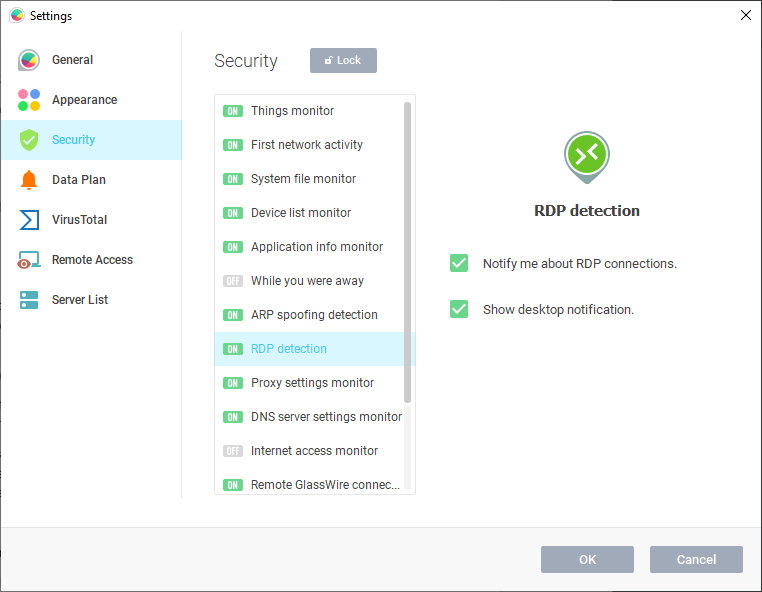
Are you still feeling paranoid that there could be a real RDP connection to your PC that is watching and recording everything you do in real-time?  It’s easy to check just to be safe.  Download and install GlassWire, then go to the top left GlassWire menu and choose “settings” then “security”. 

Detect Windows RDP connections in real-time with GlassWire.

Now switch on GlassWire’s RDP connection alert.  From here forward, when your PC has an RDP connection GlassWire will alert you.

You can also see if your PC received an RDP connection while you were away.  Just check GlassWire’s alerts screen or graph to see your PCs idle network activity.  Or, you can turn on GlassWire’s “Block all” firewall mode when you’re away from your PC to avoid any connections while you aren’t using your computer.

Laptop Magazine also has a great article on how to disable RDP on all different versions of Windows.

(Download GlassWire Now)

Blog

How to detect RDP connections to your PC, with GlassWire!

RDP (remote desktop connection) is a way for people to fully control their PC or server remotely. Unfortunately this technology is now being used as an attack vector on Windows PCs and servers.

Bleeping Computer reports that right this minute a botnet is trying to hack millions of PCs with RDP enabled.

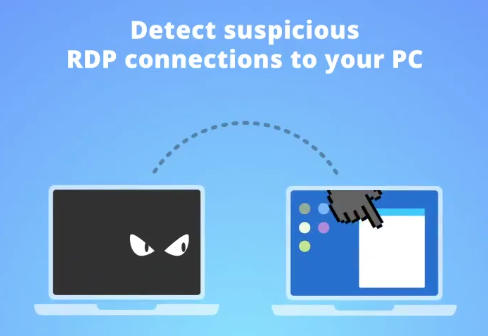
Fortunately GlassWire 2.1.158 now detects RDP connections in real-time. Just install GlassWire’s latest version, then GlassWire will alert you instantly if your PC is connected to remotely.

If you don’t plan to use RDP on your PC or server you can also disable it. Go to the search bar in Windows and look for “remote settings” then open the window.  Remote desktop should be switched to “off” if you aren’t using this feature. 

If you do have to use RDP and have no choice UC Berkley has a list of best practices on how to secure RDP.  Also, go to the top left GlassWire menu and choose settings/security to turn this RDP connection feature on, or off.

Get GlassWire 2.1.158Change list

Blog

DNS Hijacking: How To Stop It

Did you know there is a type of hacking that can take over an entire website without encountering it directly?

DNS hijacking is dangerous because it can siphon your visitors, incoming emails, and other services before they reach your network.

DNS stands for “Domain Name System”. A good way to think about a DNS is like an online phone book, or collection of phone books. The DNS essentially provides a series of tools a browser checks, before it finally reveals the location of the server that hosts the website the user seeks to visit.

In other words, DNS is your name in the massive universe that is the Internet. It helps people find you.

How DNS Hijacking Works

DNS hijacking can subvert the resolution of Domain Name System (DNS) queries. It is often done by using malware to override a computer’s TCP/IP configuration. Then, it redirects the rogue DNS server to the control of a cyber attacker.

Another method of DNS hijacking is to modify the behavior of a trusted DNS server which then makes it not comply with internet standards.

DNS hijacking is used for both malicious purposes, such as phishing and spear phishing, or for self-serving purposes of the ISP (internet service provider) and public router-based online DNS server providers.

When used for malicious purposes, hackers can travel upstream in the digital lines of communication to build false entries, which then point visitors intending to visit a website to a false destination.

While a website typically identifies a website by its .com or .net address, the DNS must also translate the fully qualified domain name into an IP address. During this exchange of information, redirects can harm a website.

How to Protect Yourself from DNS Hijacks

Part of the problem with DNS hijacking is the hacking attempt is often difficult to detect, then combat. This type of hijacking has witnessed a bit of a reemergence of late which is unfortunate as many thought it was a thing of the past.

The good news is that while preventing some DNS hijacking is challenging, it is not impossible to stay away from. The techniques you can use to guard against DNS hijacking is comparable to other kinds of cyber attacks.

Basic preventive measures include:

●      Using well regarded security software.

●      Installing the updates and security patches as soon as they become available.

●      Avoiding clicking on suspicious links in emails or on social media.

●      Avoiding sending or receiving personal information on public Wi-Fi.

●      Leaving websites immediately that seem untrustworthy.

●      Exercising caution with Wi-Fi networks that don’t start with a terms of service before browsing the web.

Furthermore, one can protect their router by making sure the default admin username and password for the router is changed.

Improve Your DNS Security

Though some of the more basic forms of DNS hijacking are avoidable, there are other kinds that are more difficult to detect. For example, there is little you can do about a website that becomes compromised.

Consequently, there are additional measures you can take to protect your personal information. It includes the ability to implement Domain Name System Security Extensions (DNSSEC) on all your devices.

The security program allows domain owners to monitor traffic on their own domains, and therefore check for suspicious activity. A DNSSEC also presents control over registering domain zones and enabling DNS resolvers.

Change the DNS Server

Another security measure is to change the default DNS server. Computers and routers, by default, connect to the global DNS service related to the local internet service provider (ISP). A third-party DNS server, meanwhile, can take over responsibilities for routing.

Google DNS and OpenDNS are two third-party DNS routing providers, and free of charge to use. If you select another alternative make sure it is from a reputable company or nonprofit organization, because allowing control to the wrong DNS server could actually expose you to more threats, not fewer.

How do you protect mobile devices? Have you ever considered anything like a Firewall for your Android device? This should be a first line of defense any time you go online.

Encrypted Connections

Virtual Private Networks (VPNs) are software applications that encrypt web traffic, keeping your data private when connected to a network. The VPN connection takes place through an encrypted “tunnel” to ensure secure web browsing, and helps with DNS hijacking protection.

A VPN serves as a tunnel between your ISP and the host, where the information between the two endpoints cannot get hacked or stolen. A VPN is similar to third-party DNS providers.

A word of caution: not all commercial VPNs are created equal. The unfortunate misconception is that they’re all the same, but some VPNs are more effective than others. The best VPNs should have stellar reputation (which is easily discoverable online with a little searching), definitive no-logging policy, and no trace of government ties or state ownership. You should also remain aware that some VPN providers will log your browsing habits, filter network traffic, and block certain websites.

OpenVPN has one of the better reputations on the market. L2TP/IPSec is another common configuration that some invest in. There are other ways you can stop recording network activity.

Cross-Site Scripting (XSS)

When a local network gets infiltrated there are several noticeable differences. Web pages will load slower, and have a different looking presentation. It may even include replacing a popular website, such as Amazon or Google, with a fake, look-alike page.

Along with DNS hijacking, cross-site scripting (XSS) is another type of attack that is common with DNS hijacking. XSS enables criminals to obtain private information through a web browsing session.

Therefore, vigilance is crucial. Users should remain mindful of what URL the browser is pointing toward. If the domain portion of the address (which contains .net, or .com) looks unfamiliar then you need to immediately shut down the browser and double check the DNS settings.

A Final Thought

Lastly, you can get further confirmation that the website is legitimate by making sure it has a valid secure sockets layer (SSL) certificate. The SSL is indicated by the green “lock” icon in the address bar. Never enter personal information or credit card numbers to a website missing an SSL.